Real Estate Transfers: Table of Contents
- Reassignment
- Manage Transfer Request
- Remove Associated Broker
- Change Managing Broker/Change Branch Manager
- Close Company or Branch Office
- Common Issues and Resolutions
The Digital Reassignment Process in MyLicense One (ML1) allows brokers and brokerage entities to complete employment transfers and status changes online. This streamlined system replaces the old transfer processing through INBiz and mail-in forms.
These instructions will start after you have logged in your Access Indiana account and linked your license record in MyLicense One. If you need guidance on those two items, please see the Access Indiana Guide and the MyLicense One Guide.
Reassignment
Individual Brokers must use this action to request a change in brokerage affiliation and/or license. The license must be unexpired and in Active, Referral, Inactive or Unassigned status. * If your license is already expired, you must renew or reinstate it first.
Select Action
Select the three dots by your Real Estate Broker License and select the Reassignment Action Item.
When your Reassignment Application begins, please read through the Reassignment Application Information, proceed to the Real Estate Broker Information page where your information will be displayed for informational purposes only. No changes can be made to your personal information during this process.
If you have made recent changes that are not display here, please Delete this request, and start a new Reassignment application to refresh the data. Should you identify any discrepancies in the information presented, please delete this application request and either submit a separate request or contact the Real Estate Commission at pla5@pla.in.gov to rectify your records.
Select Reassignment Options to proceed to the next section.
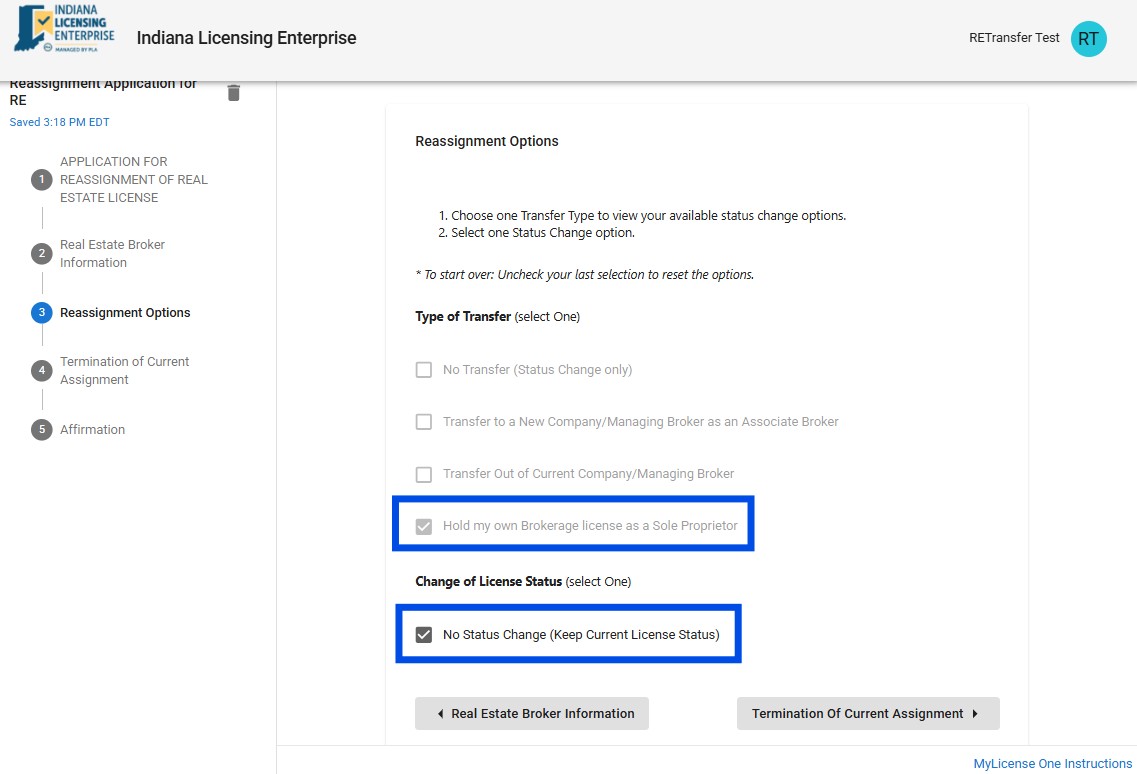
The Reassignment Options that appear will be dependent upon your current status and current assignment.
Your Requirements will changed based on which Type of Transfer you select. (This will change the Left Menu)
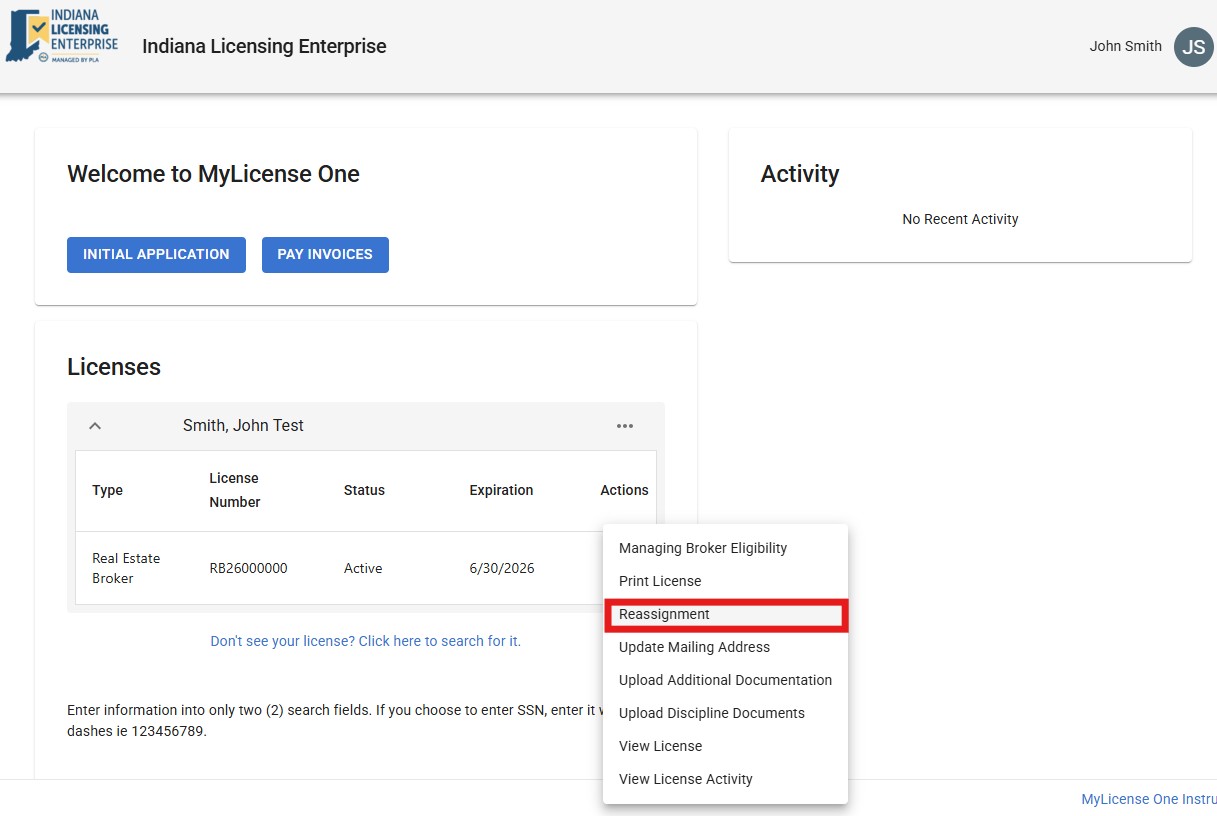
Reassignment - Status Change Only:
No Transfer (Status Change Only) with a status change to Referral
When selecting this option you will be required to check the box for the status change to Referral, then check the box to agree to the changes and select the Affirmation to proceed to the next section.
When you have electronically signed your Reassignment Application Affirmation, you will select the Finish button and proceed to the Payment Processor.
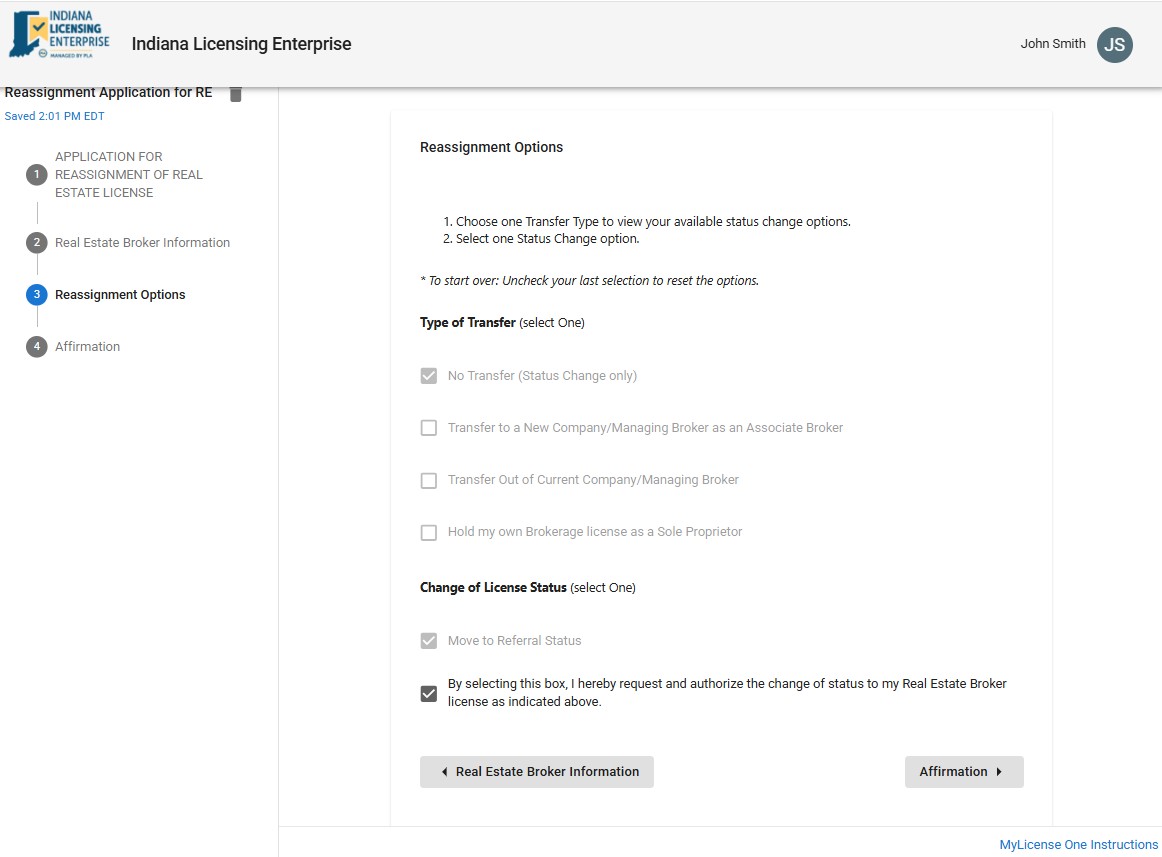
Reassignment with Activation:
Transfer to a New Company/Managing Broker as an Associate Broker with Change of License Status
The application will proceed in two (2) phases -
- Transfer Approval: Once your Employing Company or Managing Broker approves your transfer, your Broker license will move to the new brokerage under Referral status, provided all transfer requirements are complete.
- License Activation: Your application will then be reviewed by Commission Staff to approve the requested license activation.
To ensure a timely determination and avoid processing delays, please complete the Activation of Broker License section fully, upload copies of all required Continuing Education certificates, and include supporting documentation for any "Yes" responses regarding disclosure questions, if applicable.
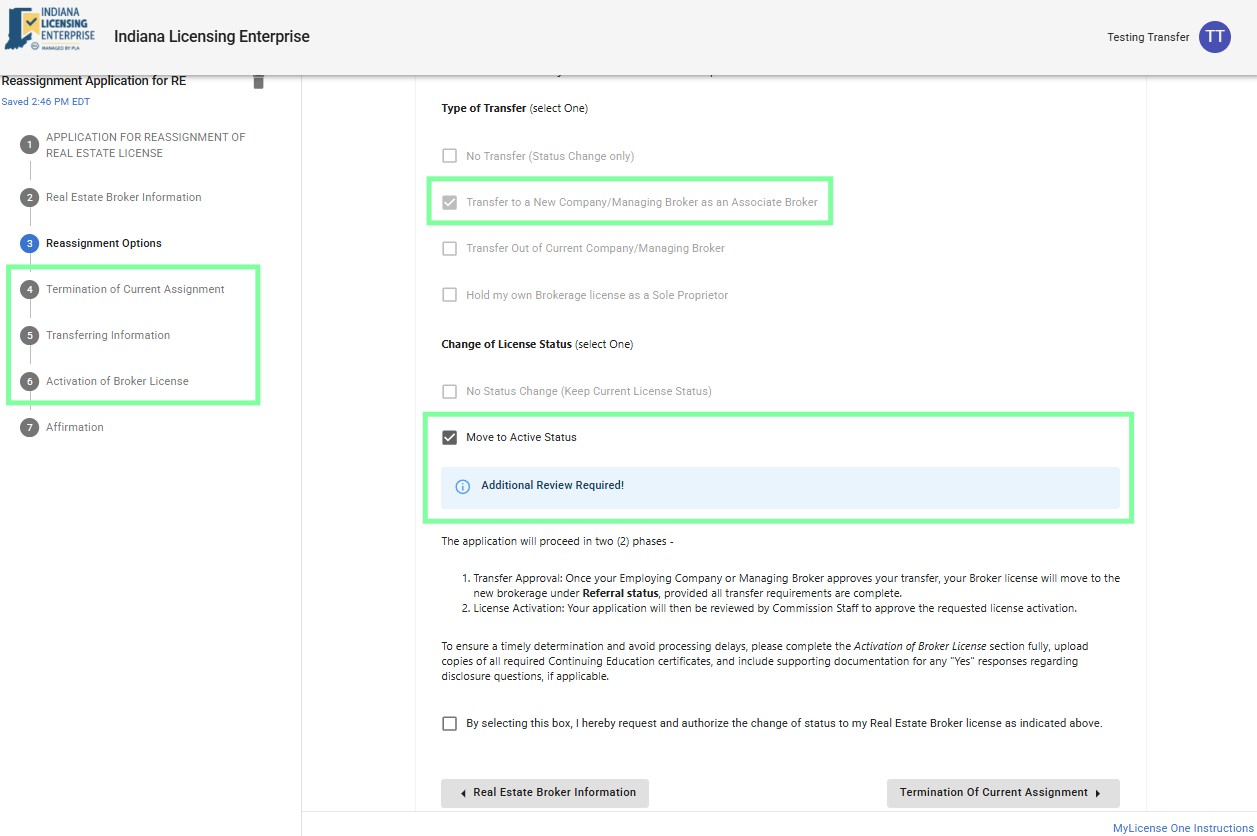
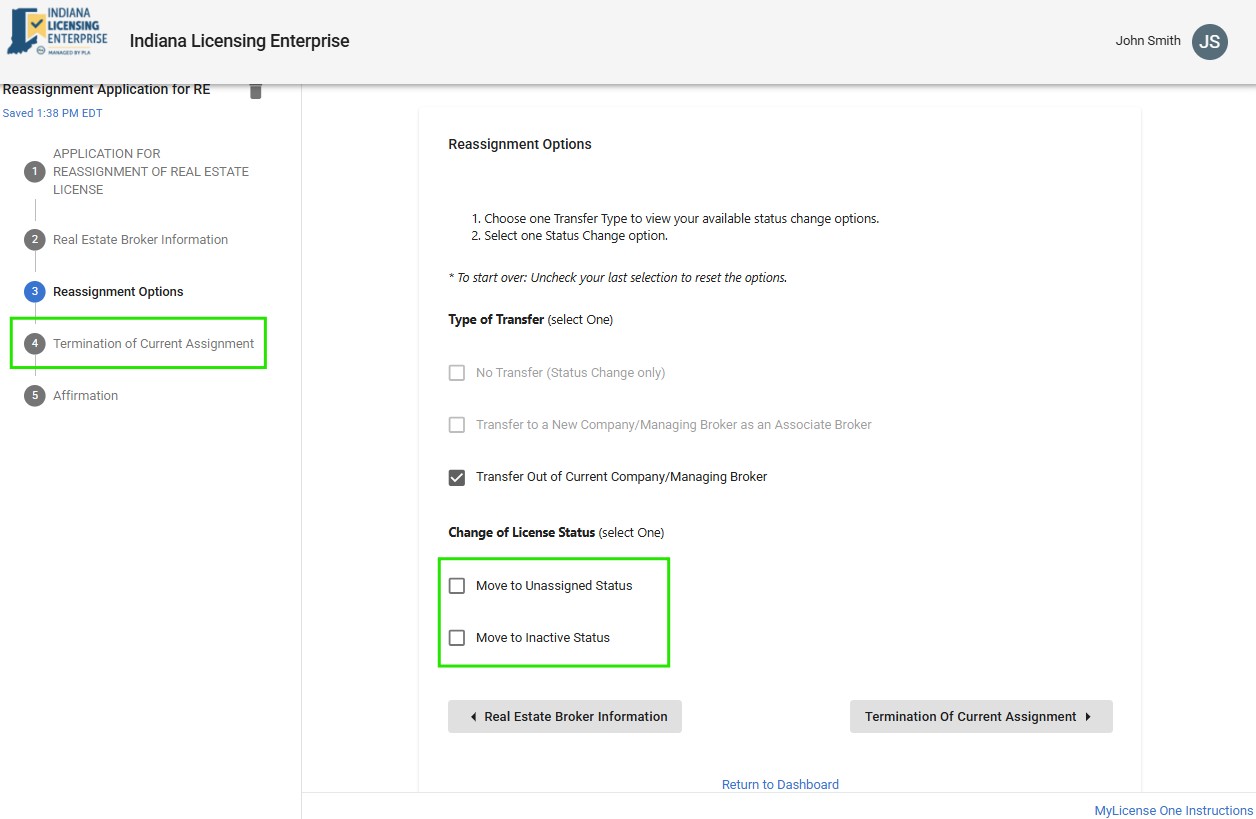
Reassignment - Transfer to New Company:
Transfer to New Company/Managing Broker as an Associate Broker
When selecting this option you will be required to select a Change of License Status and your Requirements will change to include confirmation of current assignment termination and you will need to add your new Employer.
Please keep in mind that all of the following conditions must be met:
- Approval: The Employer must approve your request.
- Current License: Your license must be current and not expired when the request is approved.
- Eligibility: Your license must remain free of disciplinary actions or other status changes during the entire process.
- Qualified Employer: The Employer must have an active Indiana license. Individual employers must have Managing Broker Eligibility as a Sole Proprietor.
* If the request is retracted, denied by the Employer, or found ineligible by the Commission, this application will be denied and closed. A new application will be required for any future transfer or status change. All fees are final, non-refundable, and non-transferable.

Manage Transfer Requests
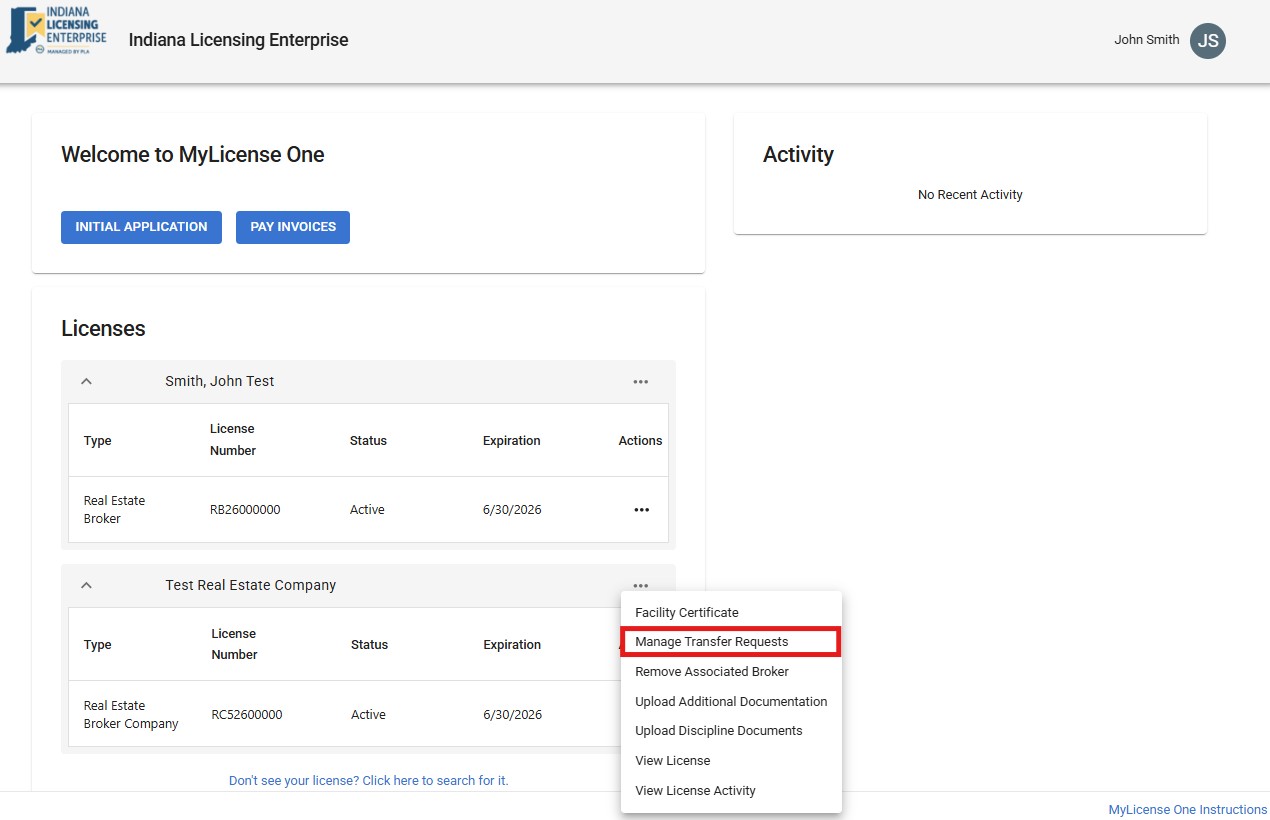
Broker Companies and Sole Proprietors use this action to review and approve all transfer requests submitted to their brokerage by Individual Brokers or Candidates. The brokerage license must be active and meet all other eligibility requirements to hold associates
Select Action
Select the three dots by your Real Estate Broker Company License (Or Real Estate Broker license IF you are a Managing Broker) and select the Manage Transfer Requests Action Item.
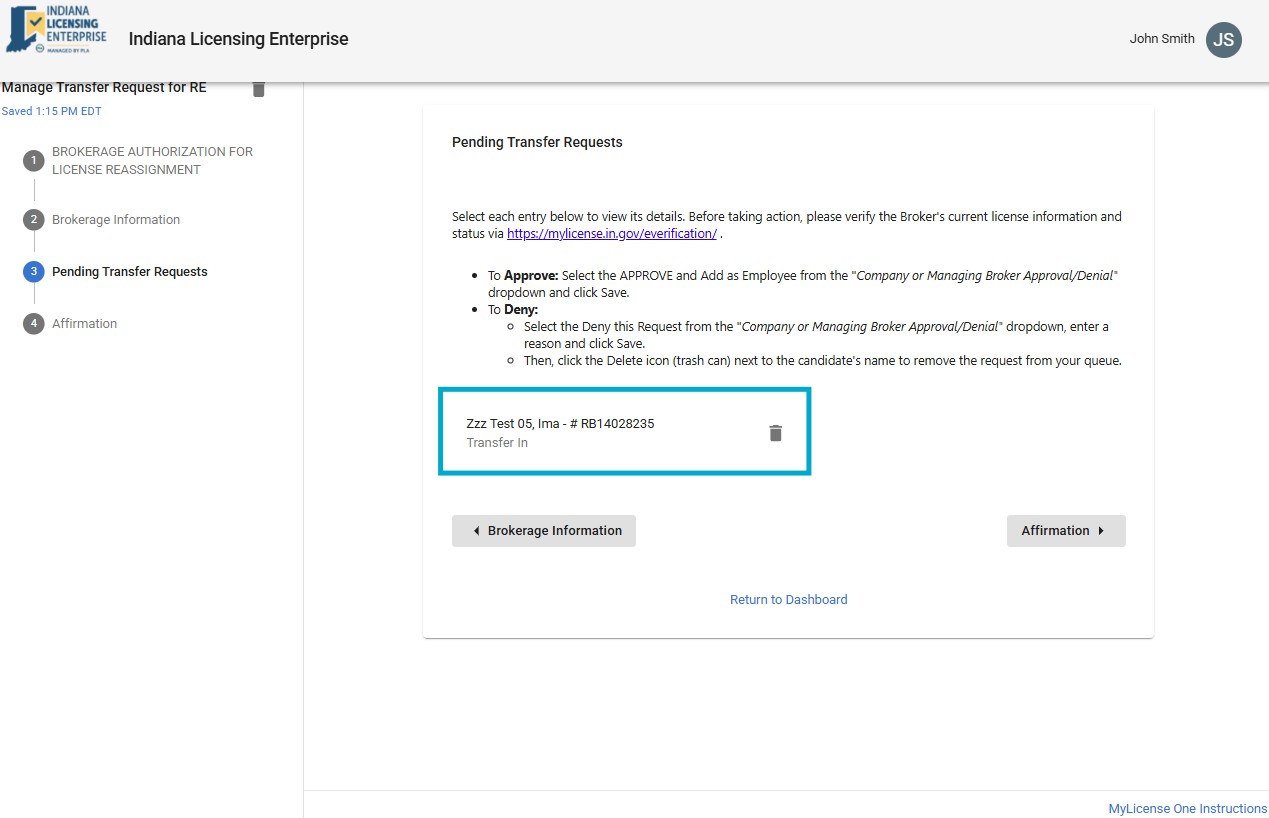
When your Manage Transfer Request begins, please read through the Authorization carefully and proceed to the Brokerage Information page where your information will be displayed for informational purposes only. No changes can be made to your personal information during this process.
Should you identify any discrepancies in the information presented, please delete this application request and either submit a separate request or contact the Real Estate Commission at pla5@pla.in.gov to rectify your records.
Proceed to the Pending Transfer Requests section. You must select each Pending Transfer to select a decision.
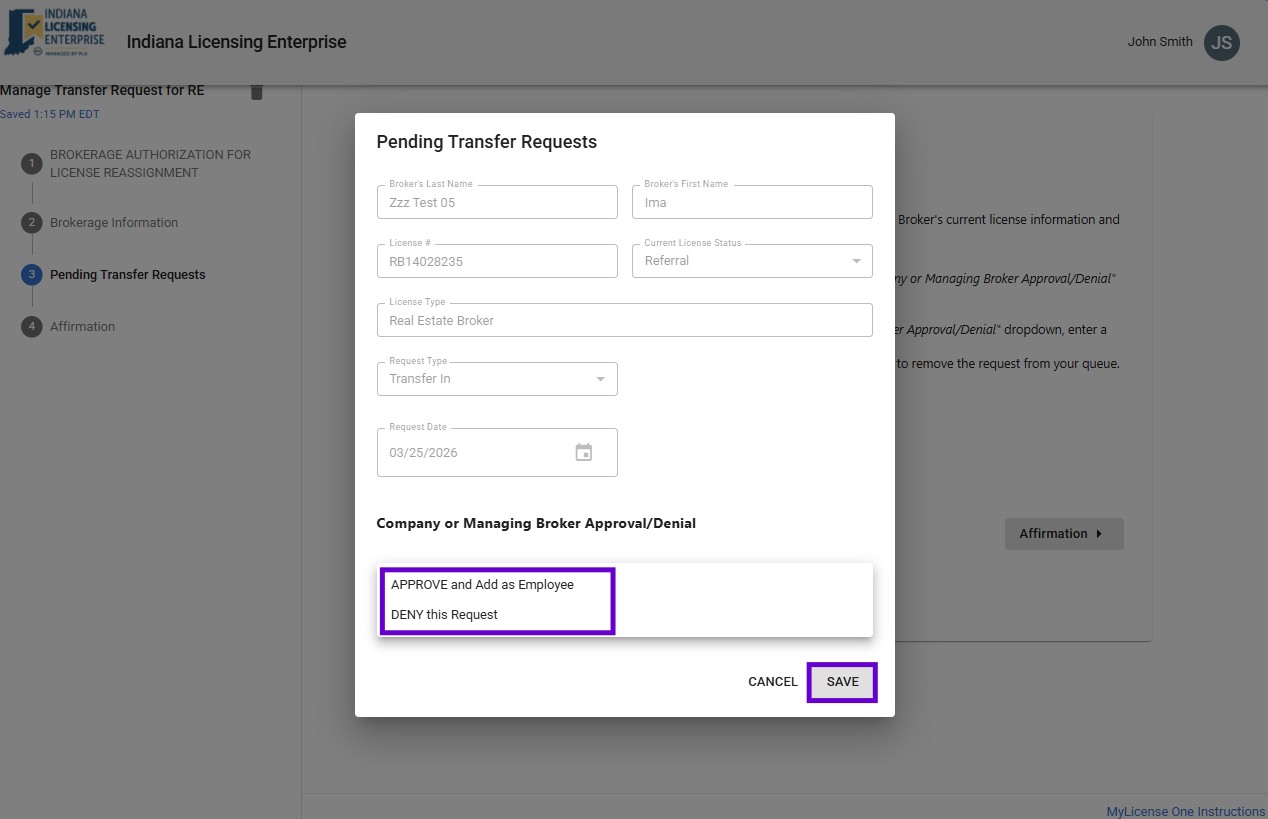
Select one of the following options:
- APPROVE and Add as Employee
- DENY this Request
- DEFER
- This will allow the request to remain pending, however, there must be at least one other transfer Approved or Denied to proceed.
- Select Save
- Check the box to certify
- Proceed to the Affirmation where you will again certify that you are responsible for the Company and authorized to submit the application.
- Select Finish
- On the final Summary page, you may review the Reassignment form in its entirety.
To finalize, you MUST select the SUBMIT button.
Remove Associated Broker(s)
Broker Company and Sole Proprietor may use this action to remove brokers who remain associated to their brokerage license after employment termination if the brokers failed to transfer and are unresponsive. Up to 10 brokers may be removed per submission; if more than 10 are needed, additional request forms can be submitted, preferably 2-hours apart.
Select Action
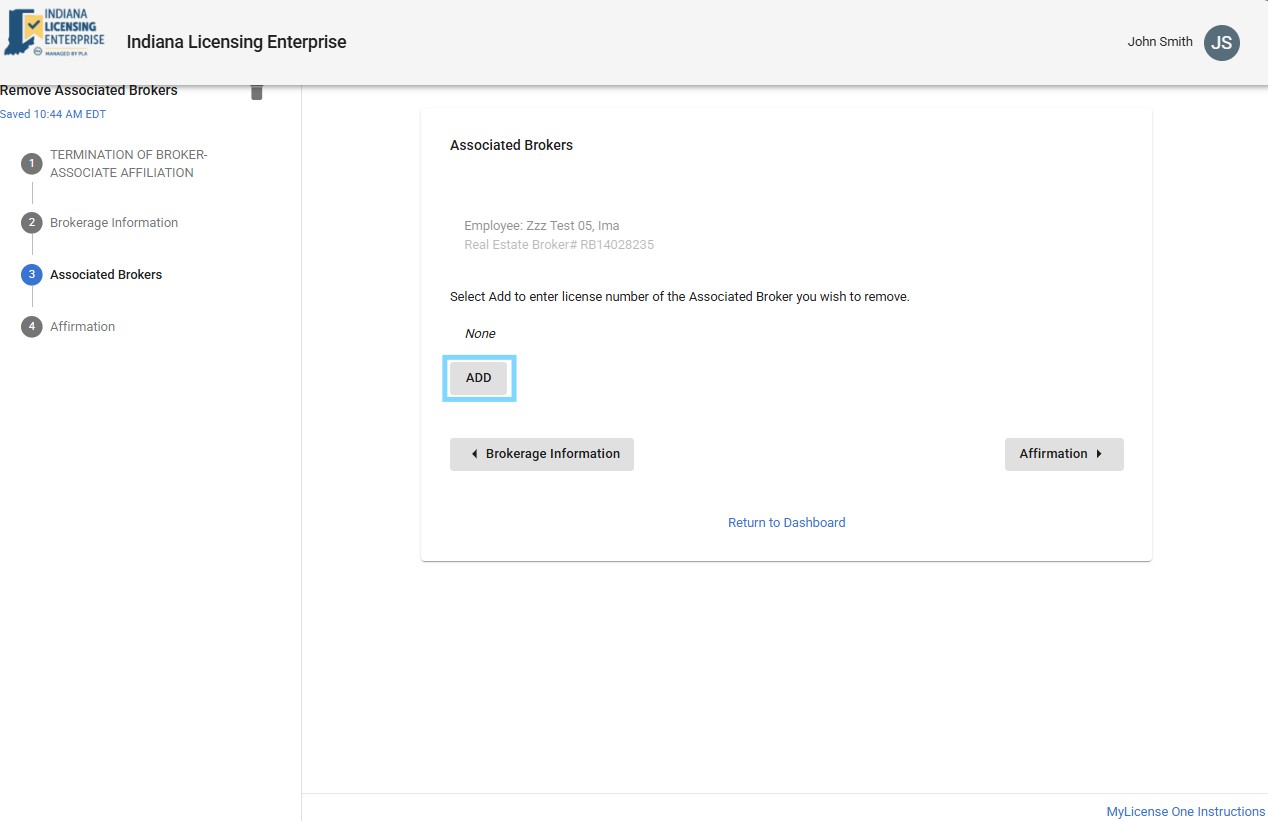
Select the three dots by your Real Estate Broker Company License (Or Real Estate Broker license IF you are a Managing Broker) and select the Remove Associated Brokers Action Item.
When your Remove Associated Broker application begins, please read through the information carefully and proceed to the Brokerage Information page where your information will be displayed for informational purposes only. No changes can be made to your personal information during this process.
Should you identify any discrepancies in the information presented, please delete this application request and either submit a separate request or contact the Real Estate Commission at pla5@pla.in.gov to rectify your records.
Proceed to the Associated Brokers section.
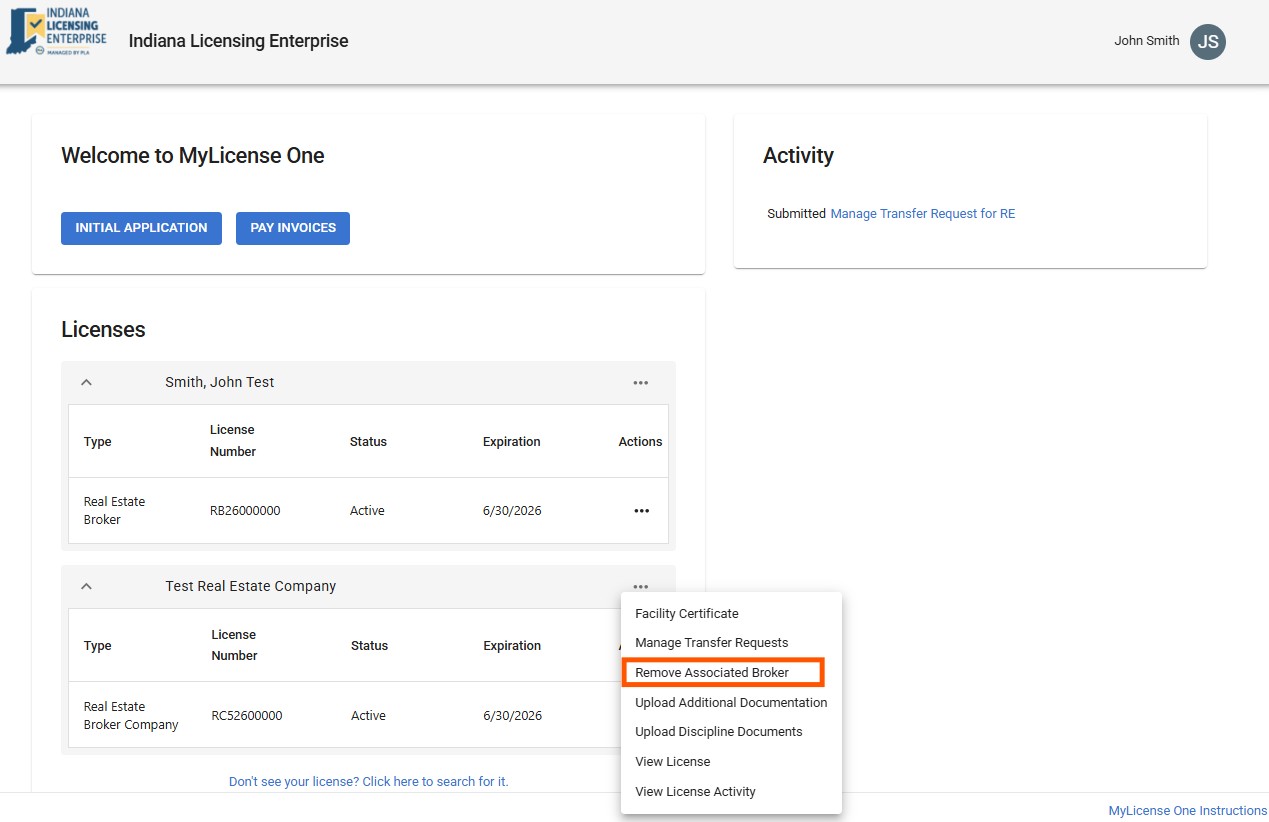
You will view the list of Associated Brokers. Select Add to enter license number of the Associated Broker you wish to remove. (You may Add up to 10 licenses at a time to remove.)
- Select Add button
- Enter Real Estate Broker License No
- Select Search button
- Select the License
- Select Add button
- Check the box to certify.
- Proceed to the Affirmation where you will again certify that you are responsible for the Company and authorized to submit the application.
- Select Finish
- On the final Summary page, you may review the Remove Associated Brokers form in its entirety.
To finalize, you must select the Pay button and proceed to the Payment Processor.
Change Managing Broker/Branch Manager
- A Managing Broker may initiate a change request on the active Broker Company to transfer/change the Managing Broker position to another Broker. The new/successor Managing Broker must qualify to accept the responsibility and approve that request using the Manage Transfer action item in their MyLicense One account.
- A Managing Broker may initiate a request to designate a new Branch Manager on an Active Real Estate Branch Office.
Change Managing Broker: Step 1
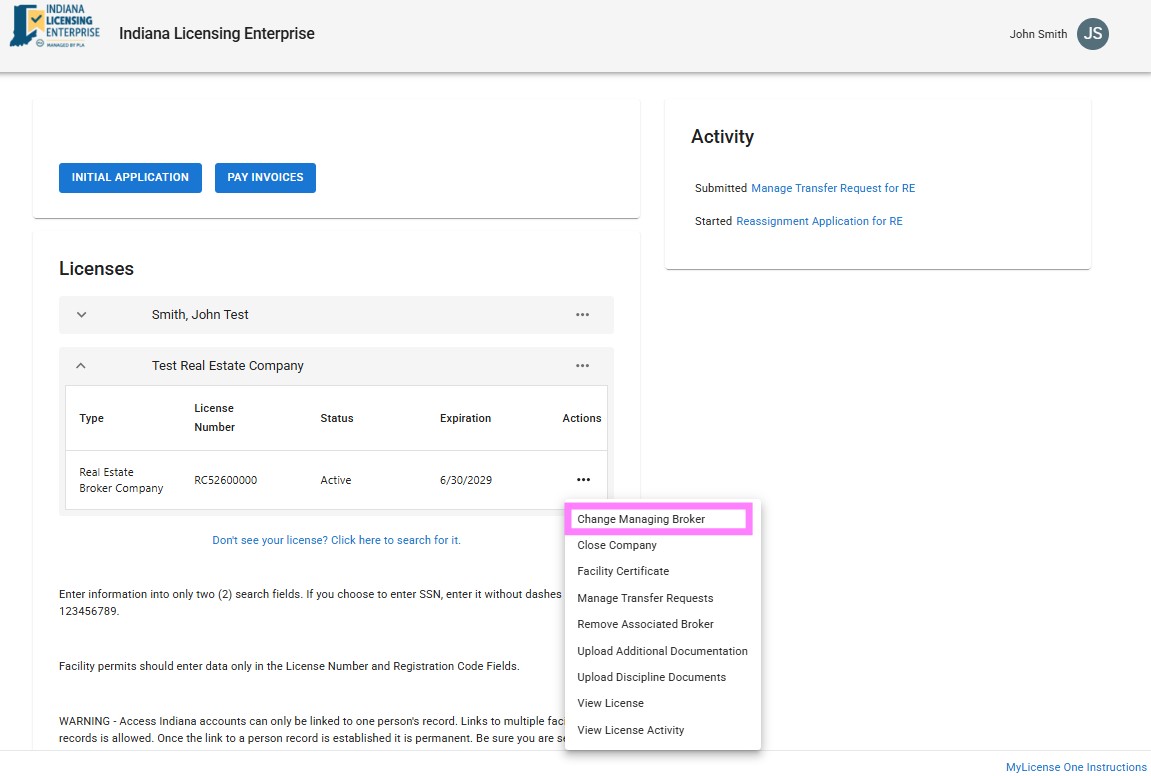
Select the three dots by your Real Estate Broker Company License and select the Change Managing Broker Action Item.
When your Change Managing Broker application begins, please read through the information carefully and proceed to the Brokerage Information page where your information will be displayed for informational purposes only. No changes can be made to your personal information during this process.
Should you identify any discrepancies in the information presented, please delete this application request and either submit a separate request or contact the Real Estate Commission at pla5@pla.in.gov to rectify your records.
Proceed to the Current Principal Managing Broker Information (Outgoing) to certify you are the current Managing Broker and then proceed to the Proposed Managing Broker Information (Successor) to add.
You must SUBMIT the request for the Successor to approve.
Change Managing Broker: Step 2 - Successor Approval
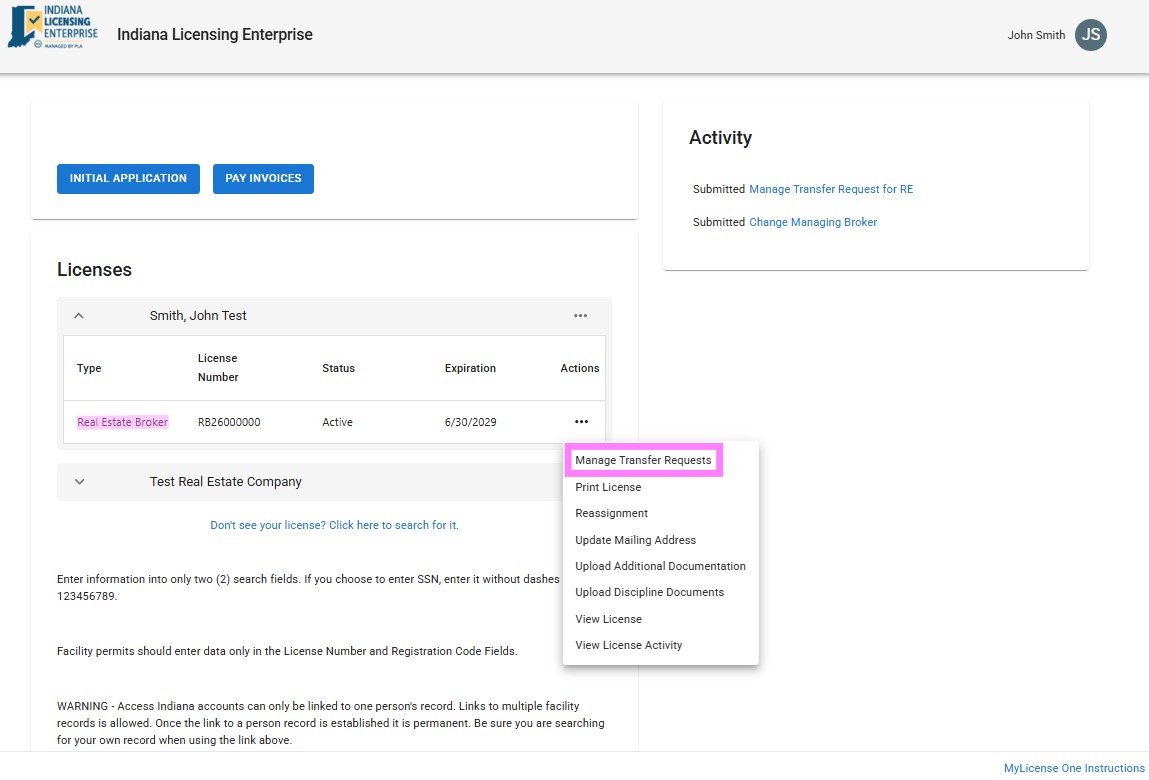
Select the three dots by your Real Estate Broker License and select the Manage Transfer Request Action Item. Please read carefully before accepting the Company Management transfer request and review and confirm that you meet the eligibility requirements.
Proceed to view the Company/Managing Broker Information and then Pending Transfer Requests.
On the Pending Transfer Requests, the Successor should find the request, select it and Approve or Deny, then submit.
Change Branch Manager - Step 1
Select the three dots by your Real Estate Broker Company License and select the Change Branch Manager Action Item.
When your Change Branch Manager application begins, please read through the information carefully and proceed to the Branch Office Information page where your information will be displayed for informational purposes only. No changes can be made to your personal information during this process.
Should you identify any discrepancies in the information presented, please delete this application request and either submit a separate request or contact the Real Estate Commission at pla5@pla.in.gov to rectify your records.
- Proceed to the Company and Branch Manager Information (again this is not editable)
- Proceed to New Branch Manager Information to add the new designated manager record
- Proceed to the Managing Broker Information page to add your license.
You will proceed to the Affirmation and Submit to complete the request.
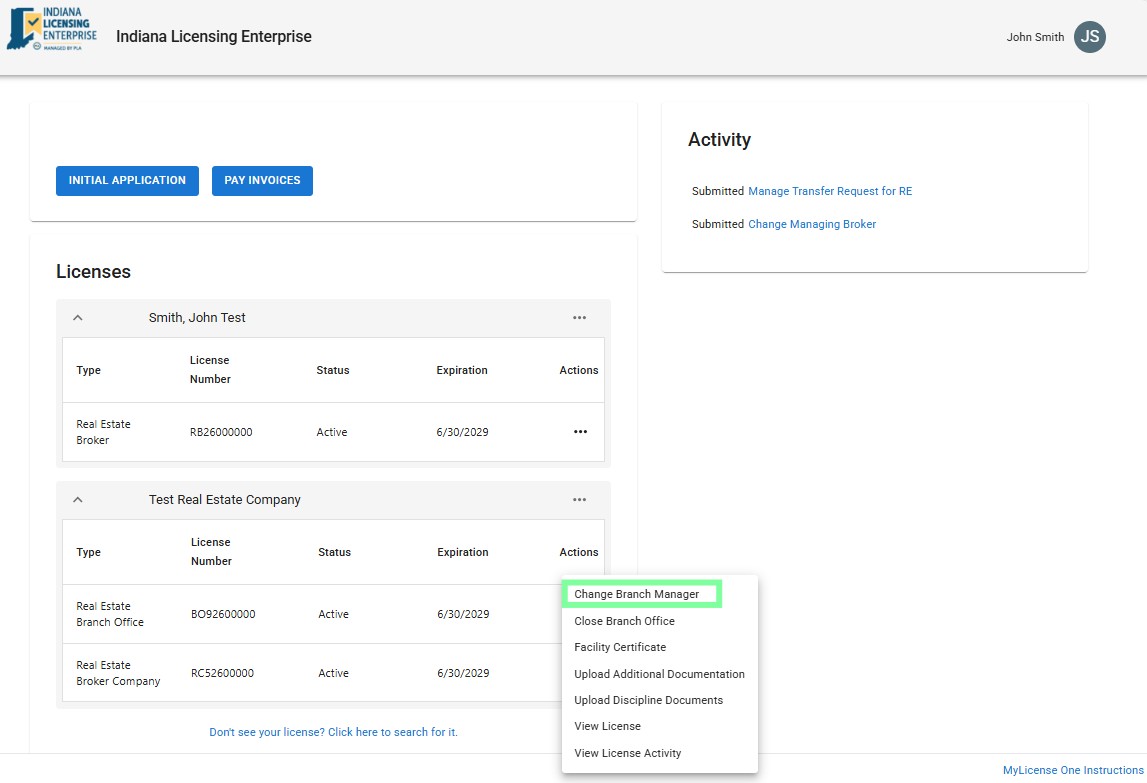
Select Action
- A Managing Broker of a Company may submit a notice via MyLicense One on the Company license to close their company.
- A Managing Broker of a Company may submit a notice via MyLicense One on the Branch Office license to close a single Branch Office.
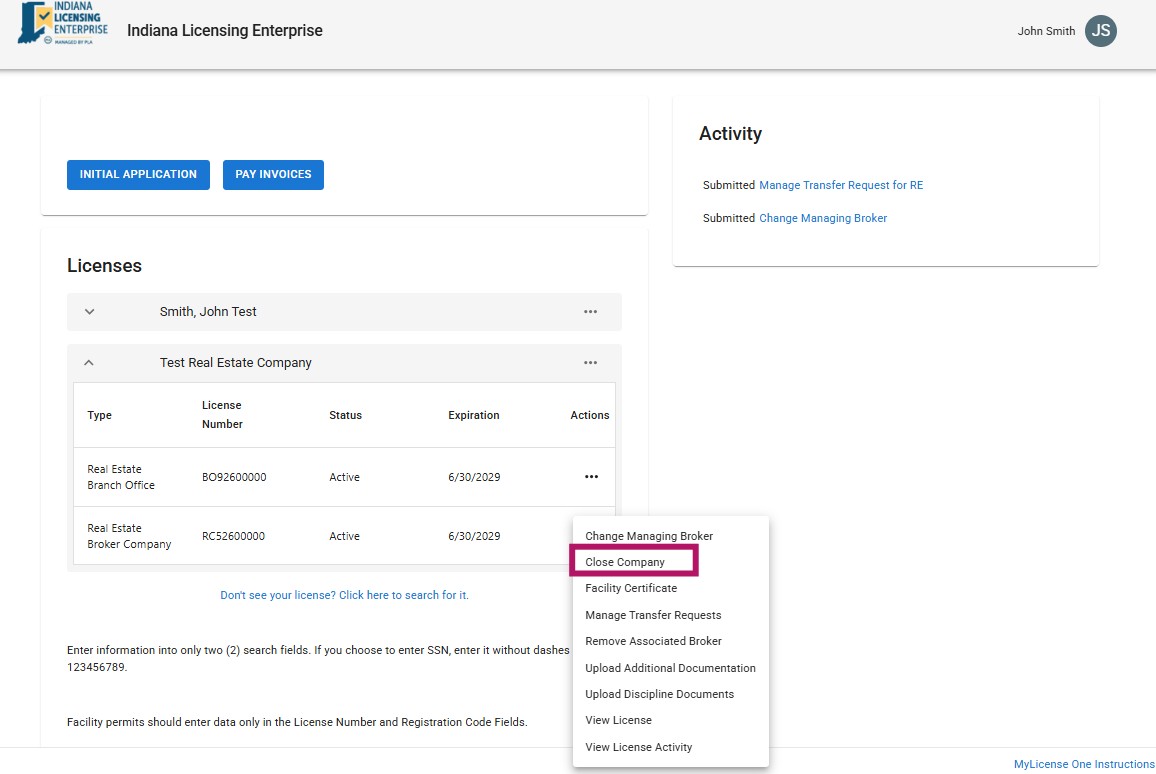
*Please note that an Access Indiana account is required to utilize Online Services. Access Indiana is a statewide effort to improve the user experience when accessing government services through creation of a portal where Hoosiers can access, link and manage their online account for multiple state agencies. If you already have an existing Access Indiana account, you can login to your account. For an Access Indiana guide, please go to Access Indiana: Getting Started.
Common Issues and Resolutions
Issue: Broker reports transfer has not completed
Common Cause: Employer has not approved the request
How to Resolve:
- Confirm request was submitted successfully through the correct platform (especially until INBiz decommission)
- Verify Employer approval status
- Advise Broker to follow up with employer
- Allow up to 1-2 hours for a new request to appear in employer queue.
Issue: Employer does not see a pending transfer request in ML1
Common Causes:
- Request has not been submitted successfully by broker
- Request not yet synced
- Employer selected Manage Transfer Request action from the wrong license record.
How to Resolve:
- Confirm the employer is using the correct license record (number must match request)
- Allow up to 1-2 hours for a new request to appear in employer queue
- Advise employer to delete all previously started “Manage Transfer Request” items from their Activity Panel in ML1 and try again after an hour or so.
- If all other steps have been attempted, you may contact PLA's Call Center to Escalate to Tier 2.
Issue: Multiple reassignment requests submitted by the same broker
Common Cause:
- Broker resubmitted before prior request was completed
- Broker submits via multiple platform/media
How to Resolve:
- System will identify latest request to “process” and escalate outdate/duplicate request for staff review
Issue: Broker selected wrong employer on their Reassignment request
How to Resolve:
- If the “wrong” request was submitted but has not been completed
- Advise broker to submit a new Reassignment request via ML1. New request will supersede prior request, which will then be canceled and escalated for Review.
- If the “wrong” request was already completed (aka approved or denied by the “wrong” employer)
- Please Contact PLA for Tier 2 to review; and
- Advise broker to submit new reassignment request.
Issue: Broker is in Referral or Inactive after transfer and expects/requested for Active status
Cause: Activation requires staff review or still pending due procedures
How to Resolve:
- Internal Review of CE Compliance and potential disclosures.
- If Approved: Status will be updated.
- If Denied: Status will not change.
- Correspondence to broker on outcome if required
Issue: Broker expects different license status after transfer
Common Cause: System applied standard status rules (e.g. Referral parking status while pending for Activation)
How to Resolve:
- Internal Review of the initial status and requested change
- Confirm whether Activation review is required
Issue: Request does not reflect current broker or employer license status
Common Cause:
- Changes to broker’s or employer’s license status, expiration date, eligibility after request being initiated, or started in ML1.
- Brokers submitted a newer request or duplicate request
- Brokers already associated with the proposed employer or a newer job offer
How to Resolve:
- Contact PLA's Call Center and request Tier 2 for Review
| ML1 Action | Reassignment | Manage Transfer Request | Remove Associated Broker |
|---|---|---|---|
| Description | Broker requests a transfer to a new brokerage, a transfer out, a license status change (including activation), or any combination of these in a single submission. | Company/Managing Broker reviews and approves or denies a transfer request submitted by a broker. | Brokerage removes an associated broker who has not submitted a reassignment request after employment ends. |
| Eligibility | Brokers must be in Active, Referral, Inactive, or Unassigned status to initiate the form. | The company/Managing Broker must be active | All license statuses and durations (including expired licenses and probationary) |