Wage Reporting: Need to Know
Submitting Quarterly Wage Reports
Manual Reporting
Using E S S / UPLINK, Employers can enter their workers directly on the Wage Reporting screen in E S S if they have fifty (50) or less workers to report. Employers may also use a file for less than fifty (50) workers.
- Select the quarter and year and click “Next”.
- Click “Manual Entry” under “Section 2: Select a reporting method of the Wage Reporting Screen” and click “Next”.
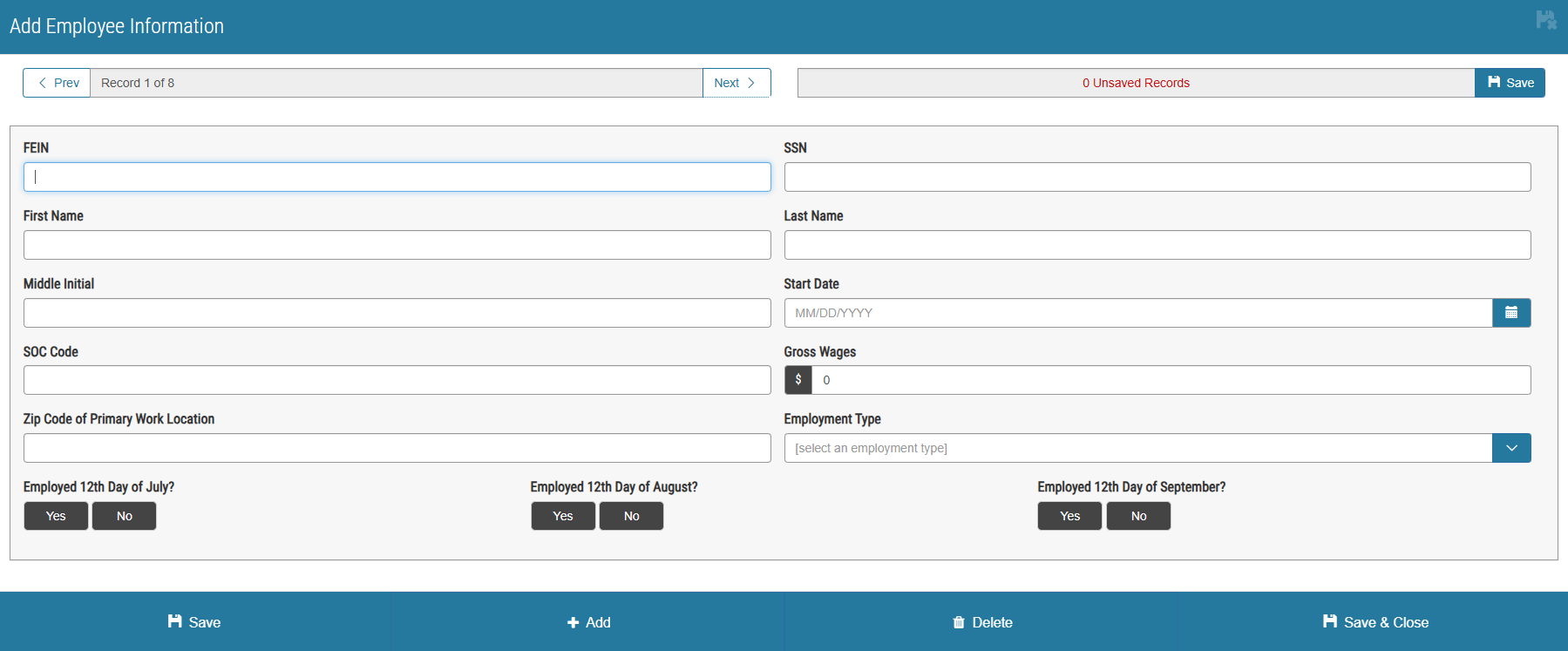
- Click “Add Employee” on the right.
- Fill in all the fields for each employee in the box that pops up.
- Click “Save and Close”.
- Click “Submit Report”.
- Check the box to certify and click “I Confirm”.
File Upload
- Employers are required to use a file to report more than fifty (50) workers.
- Select the quarter and year and click “Next”.
- Click “File Upload” under “Section 2: Select a reporting method” of the Wage Reporting Screen and click “Next”.
- Click “Choose a File” and “Upload your file”.
- Click “Submit Report”.
- Check the box to certify and click “I Confirm”.
Nothing to Report
If you have no wages for the quarter and plan to have future wages,
- Select the quarter and year and click “Next”.
- Click “Nothing to Report” under “Section 2: Select a reporting method” of the Wage Reporting Screen.
- Check the box to certify and click “I Confirm”.
See Glossary for definitions of any terms.
If you receive an error, please see Browser Issues. |