Table of Contents
IPLA's Online Services platform is currently undergoing a migration to MyLicense One. Please use the below options as a guide for your MyLicense One account creation and the available Online Services.
Help Us Help You Faster: Can’t resolve the issue after using this guide? To speed up your support request, please prepare detailed screenshots of errors and all flagged sections (not just the Affirmation/Final page) along with list of steps you took. Since Staff cannot access your device, ML1 Dashboard or unsubmitted application, these details are vital for us to diagnose and fix the problem quickly! These can be provided to the Customer Service Representative if/when you need to contact your Agency!
Create MyLicense One Account
Ready to create your new account? Complete the following steps:
Step 1
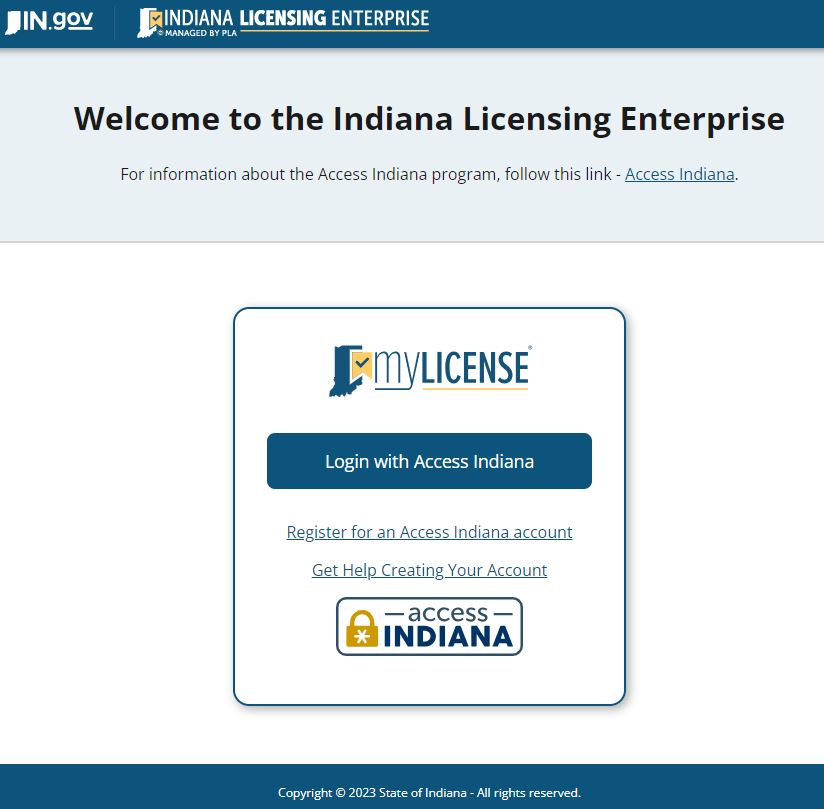
- Select mylicense.in.gov/eGov/ML1PLA.html
- Select Login with Access Indiana
Reminders:
Access Indiana or ML1 accounts cannot be shared.
Account creation is a 1:1 ratio.
One email address and one person record can be linked in an account.
Linking is PERMANENT.
Step 2
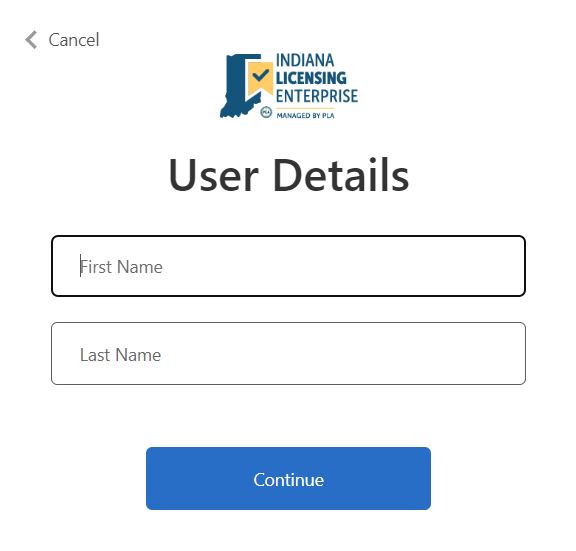
- Review the First and Last Name as they import from the Access Indiana account.
- Select Continue Button
Reminders:
Data entered on this page is not editable in the future
Data entered on this page does not affect or change a name on your license
Example:
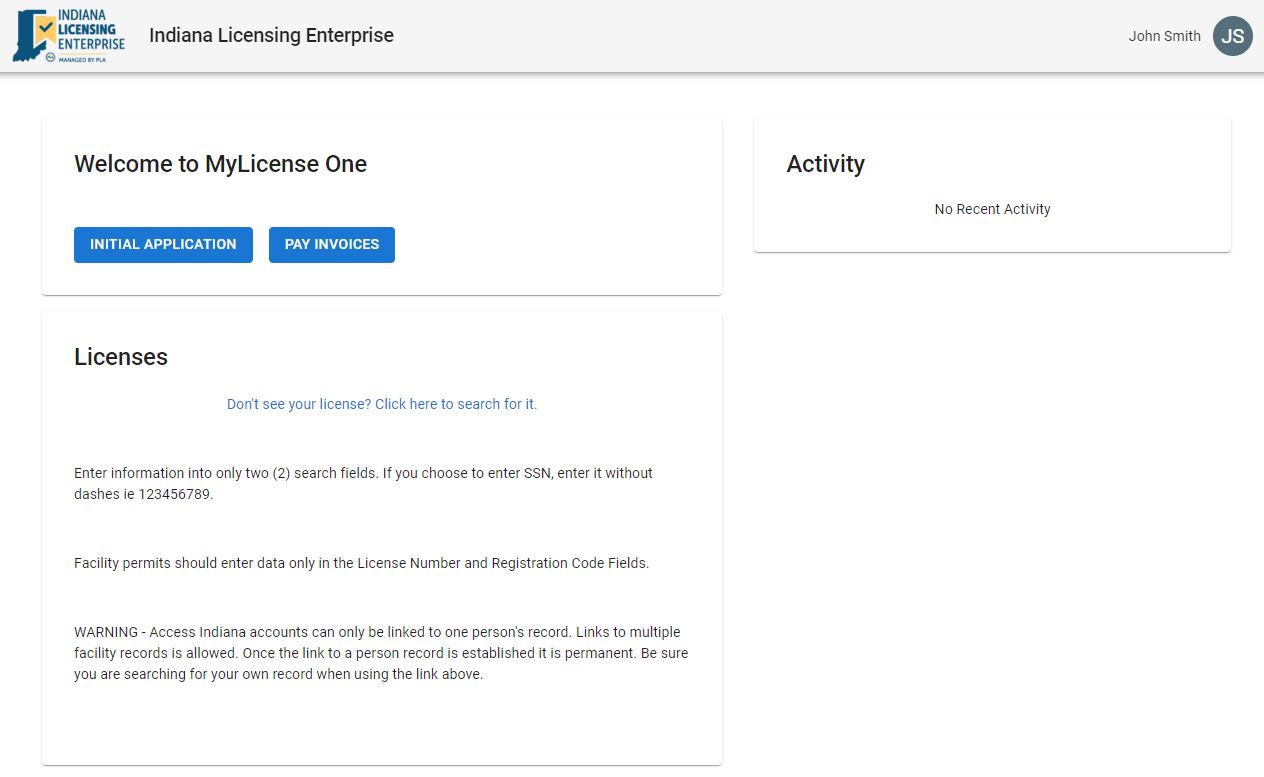
Once a MyLicense One Account has been created, it will look like this without a license linked yet.
How to Link an Existing Record or License
Now that your ML1 account has been created, check for any existing records! Think back, do you have any licenses, certificates, or permits with any other Indiana State Agency? In addition to any other PLA license, this may include those issued by ATC, IDOH, IDEM, DNR, and/or SOS. Or have you applied previously, but never issued a license? These are all reasons you may have an existing record that must be linked.
Step 1
- Select "Don't see your license? Click here to search for it."
Reminders:
Access Indiana or ML1 accounts cannot be shared.
Account creation is a 1:1 ratio.
One email address and one person record can be linked in an account.
Linking is PERMANENT.
Step 2
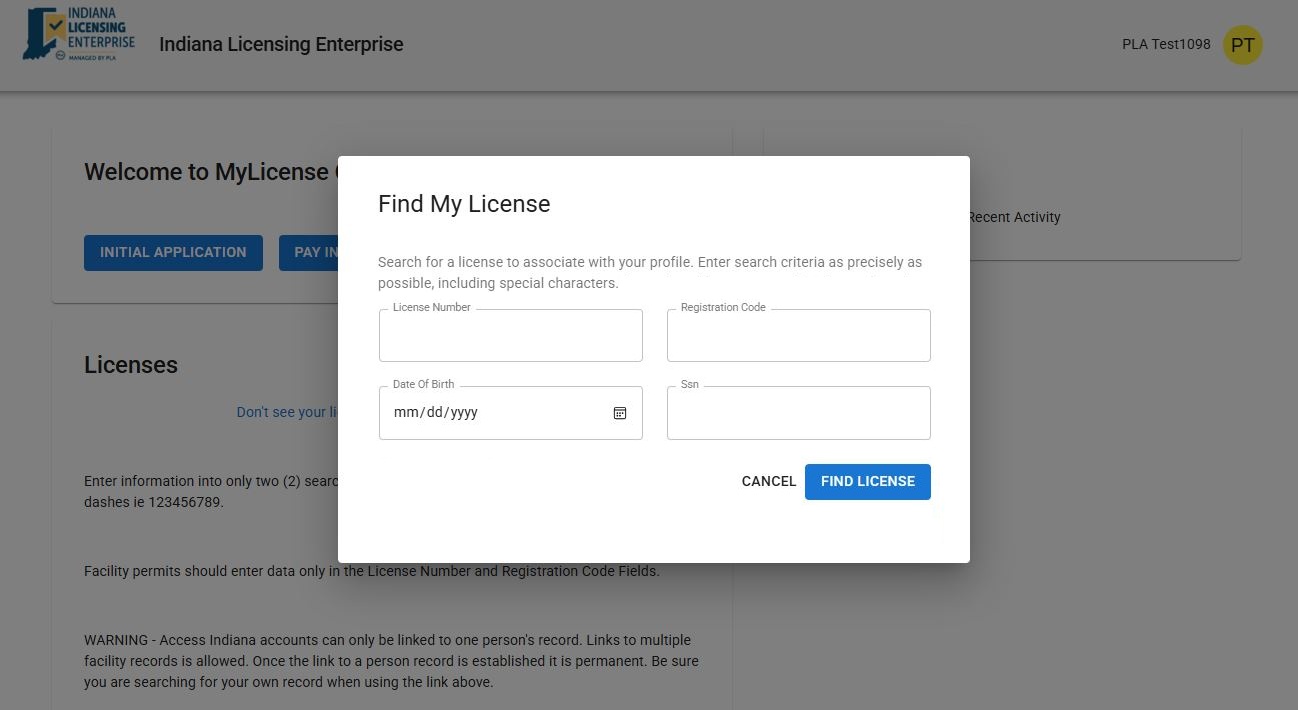
- Enter Only 2 Search Criteria specific to your license type
- Individuals or People may choose any 2 criteria
- Businesses or Facilities must enter their License Number and Registration Code
- Select Find License
Reminders:
The data must match your record in order for a successful linking message.
If you hold both an individual license and a facility license, you can link both in your account. But you must use the unique registration code provided in your renewal notice for the facility. SSN/DOB cannot be used to link a facility.
If you are using a registration code, this will be provided in your emailed renewal notice or you may contact our office.
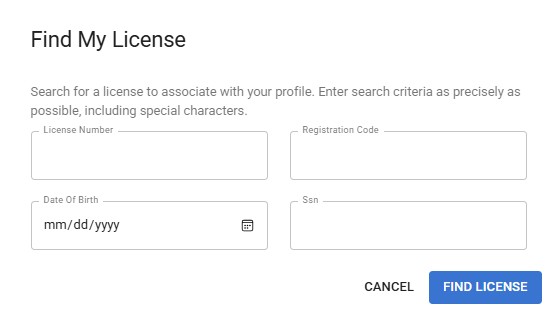
Example:
Successful linking message appears and you may now take Action on your existing license OR Apply for a new License.
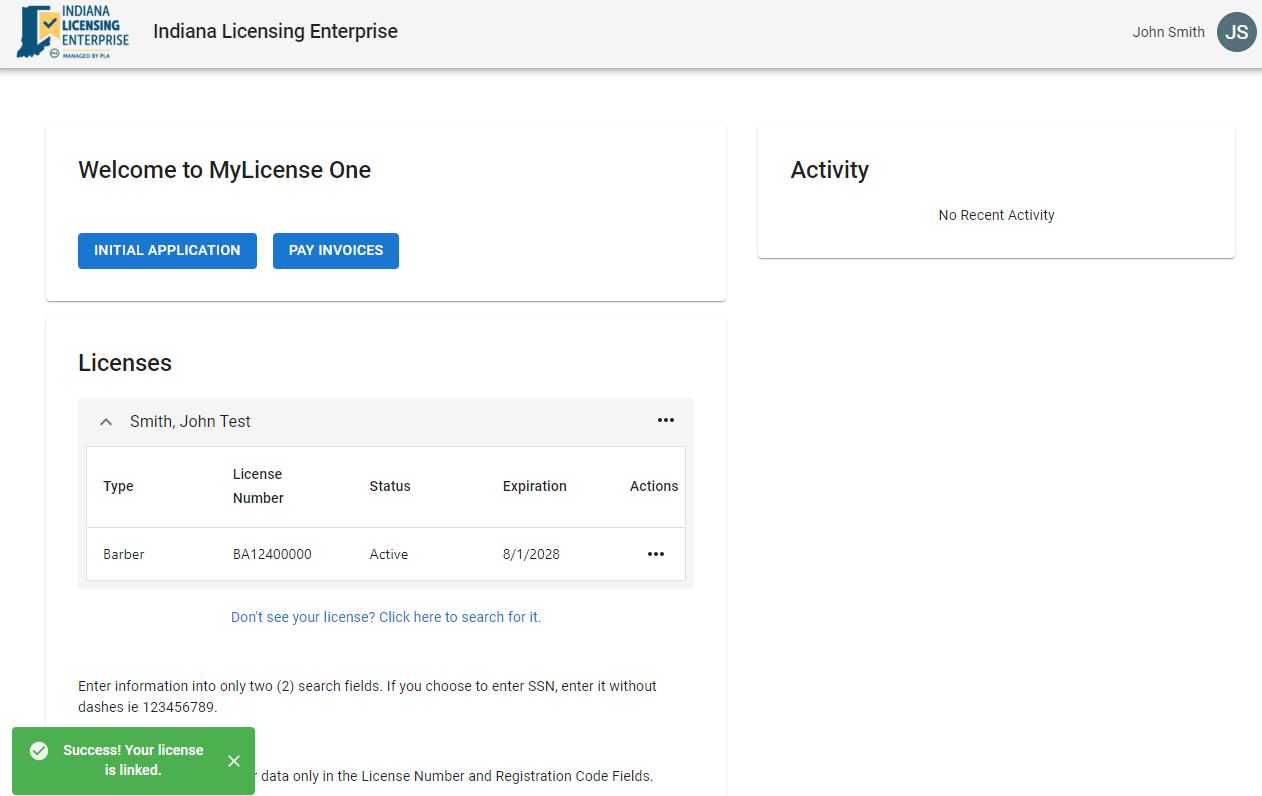
How to Apply for a License
Now that your ML1 account has been created, you are ready to apply!
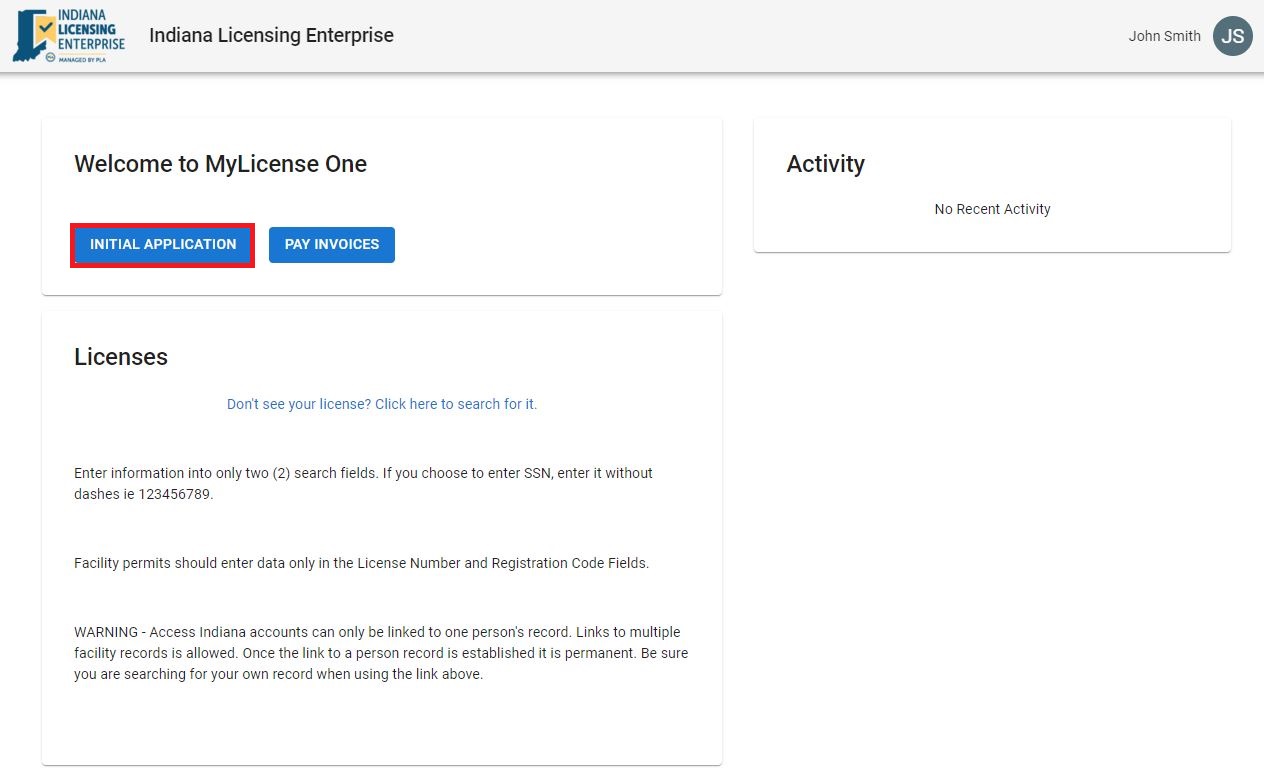
Step 1
- Select the Initial Application Button
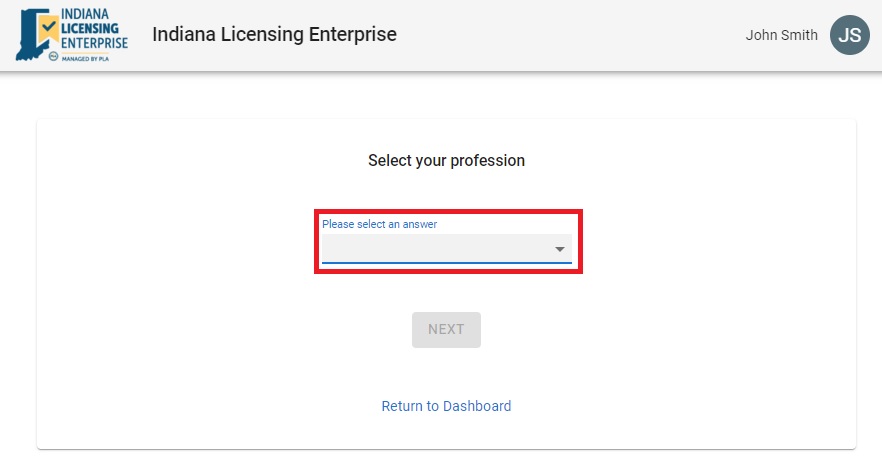
Step 2
- Select your profession by using the drop down
- Select Next
- Follow prompts on each screen
The list is defined by Profession unless you are applying for one of the following:
- Licensure Preapproval: Instructions can be found HERE
- CE Sponsor/Provider: All IPLA professions with a CE Sponsor or Provider license type will be included in this list.
- Registries: Federal Military Portability Registry
How to Track Your ML1 Submitted Application or Upload Additional Documentation
Now that you have submitted your application via MyLicense One, you would like to track your application or upload additional documentation. Please note, this is only for applications submitted via ML1 in the previous instructions. If you submitted your application in the old platform, you will need to continue the application process until your license is issued in the old platform at MyLicense.IN.gov.
Step 1
- Log back into your MyLicense One account
- Select your SUBMITTED application from the Activity panel
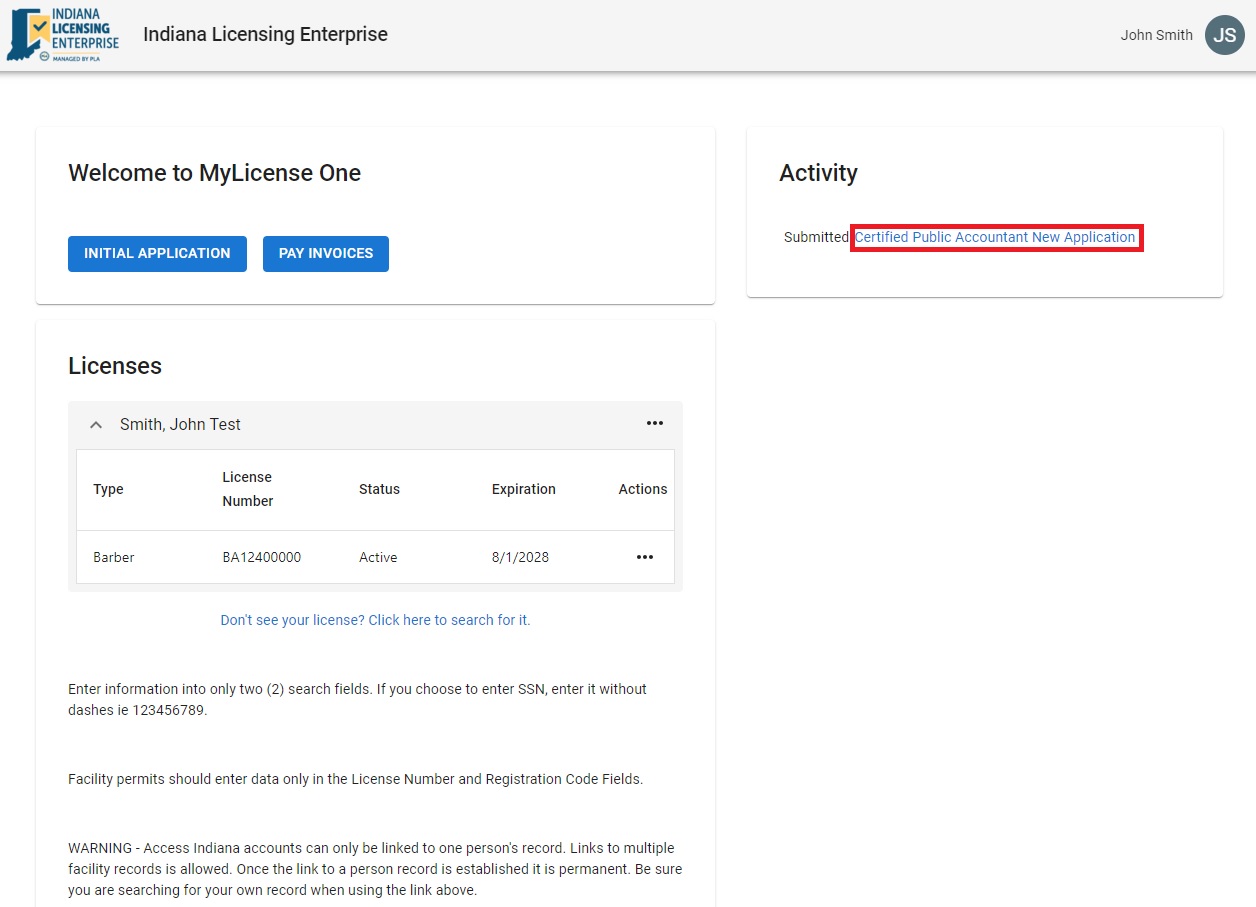
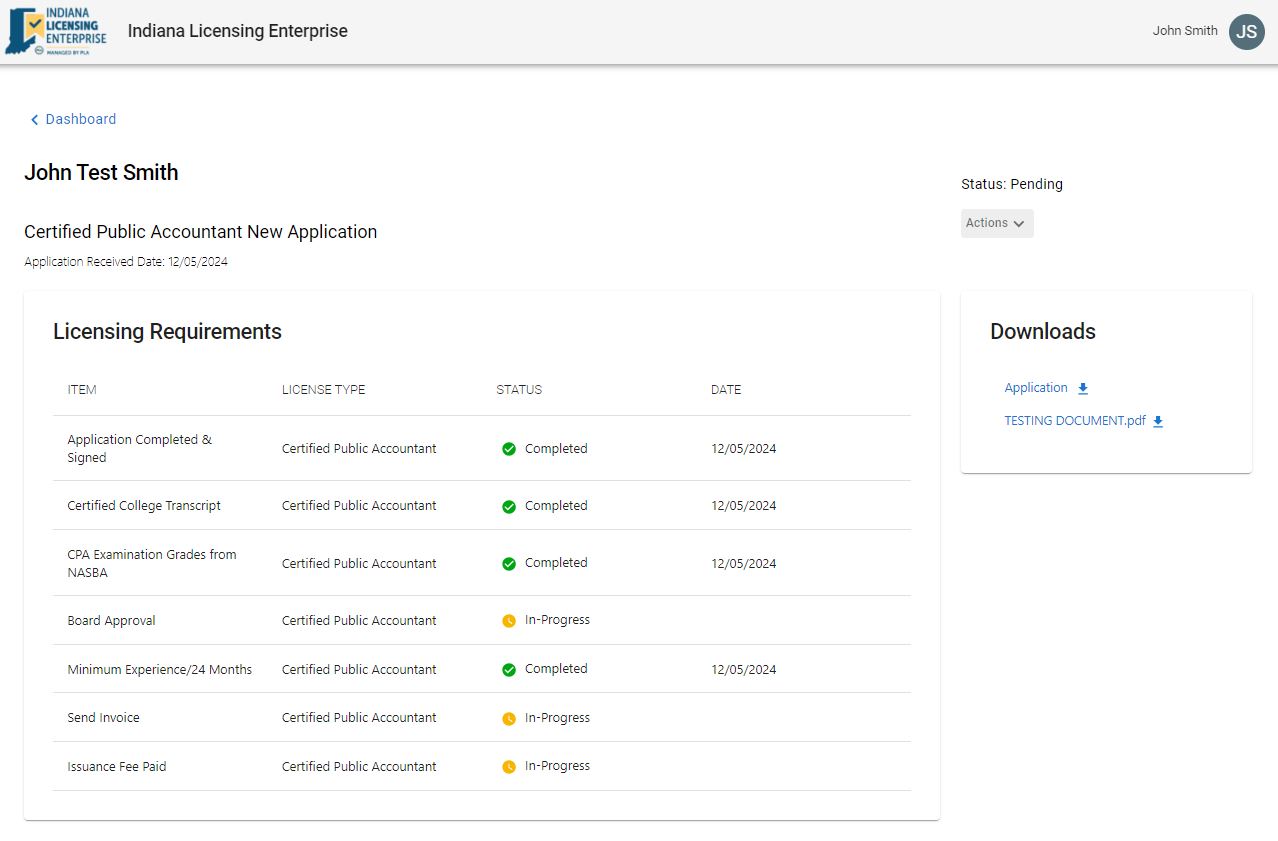
Track Your Application:
- View your licensing requirements to determine if any additional documentation is needed and when documents have been reviewed and completed.
Step 2
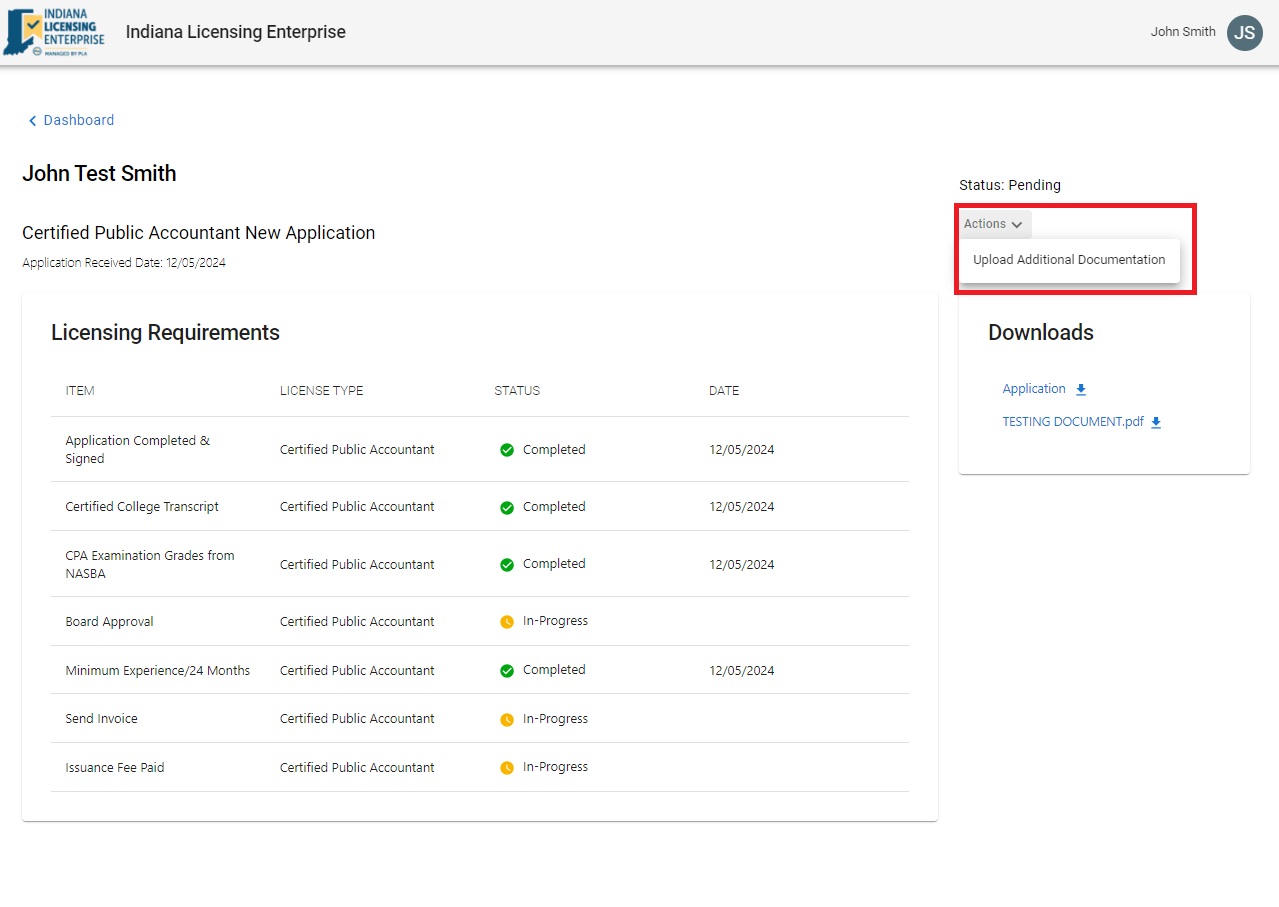
- Select Actions on the right under Status: Pending
- Select Upload Additional Documentation
- Follow Prompts to select a Document Type, Upload a document, and Submit.
To upload documentation related to any disciplinary action response or monitoring documents from an existing Order's sanctions, you may select Upload Discipline Documents Action. Including documents such as employer signed orders, probation reports, quarterly reports, etc. Filings should continue to use the Litigation Webform.
How to Renew, Update, or take Action on a License
Now that your ML1 account has been created AND you have Linked your license, you may take Action on a License! Different license types will have different Actions available depending upon their own licensure laws which may include some of the following Actions:
| Actions Available | Actions Defined |
|---|---|
| Change Collaborator/CPA | This action allows an APRN or Physician Assistant to submit a request to change their collaborating practitioner on record. For help on this process, please feel free to use the Change Collaborator Guide. |
| Change CSR Location | This action allows a Practitioner with a Controlled Substance Registration to submit their request for a change of location of their registration. |
| Change Employer | This action allows a licensee to review and submit changes to their employment. *Specifically in use for Funeral Directors. |
| Managing Broker Eligibility | This action allows a Real Estate Broker to apply for the Managing Broker Eligibility when they meet requirements. |
| Print License | This action allows you to Download and/or Print a free copy of your license. |
| Reassignment | This action allows Real Estate Brokers to request a transfer to a New Company/Managing Broker, a transfer out of Current Brokerage, or a change of Broker license status. This process does not support transfer into or out of the primary Managing Broker position of a company. There will be a $10.00 application fee. Real Estate Reassignment Guide |
| Reinstate License | This action may be available to PLA license types, who do not have the Renew License action item any longer (some exceptions may apply.) |
| Remove Associated Broker | This action allows a Broker Company to remove an associated Real Estate Broker who has not submitted a reassignment request after employment ends. Real Estate Reassignment Guide |
| Remove Collaborator | This action allows a Nurse Practitioner (NP), Physician Assistant (PA), Anesthesiologist Assistant (AA), or Direct Entry Midwife (DEM) to submit a request to terminate, rescind, or remove collaborative association with their Collaborator(s)/Supervising Licensed Practitioner (LP). Licensed Practitioners (e.g., Physician, Podiatrist, Dentist, etc.) may also utilize this action to request removal from association with NP, PA, AA, DEM; however, due to confidentiality of information, as the request will be filed in the delegate's record, LP must submit a separate removal request for each individual. |
| Renew License | This action will be available to PLA license types approximately 90 days prior to their expiration date and up to three years expired (some exceptions may apply.) |
| Request Activation | This action is currently being updated to allow a licensee with the Inactive Status to submit a request to Activate. This is currently available for only Health Facility Administrators, Engineers, Architects/Landscape Architects, Surveyors, Appraisers, and Physician Assistants. |
| Request Extension | This action allows an applicant for a Pending LPN/RN license via Endorsement who holds a Temporary Permit, that has not previously been extended or met the 180-day limit to request an extension request for review. |
| Request Extension for TNT | This action allows the Supervising Pharmacist to submit an extension request for a Pharmacy Technician-In-Training for review. |
| Update Employees | This action allows a licensee to review and submit changes to their list of employees. *Specifically in use for Funeral Homes and Funeral Branches. |
| Update Mailing Address | This action allows licensees to update all contact information including mailing address, email address, and phone number. This action does not update a business physical location or practice location. |
| Upload Additional Documentation | This action allows licensees to upload documentation pertinent to their license or pending application. Including requests for legal name changes, response to Continuing Education Audits, general inquiries, etc. |
| Upload Discipline Documentation | This action allows applicants and licensees to upload documentation related to any disciplinary action response or monitoring documents from an existing Order's sanctions. Including documents such as employer signed orders, probation reports, quarterly reports, etc. Filings should continue to use the Litigation Webform. |
| View License | This action allows a licensee to view their basic licensure information. |
| View License Activity | This action allows a licensee to view activity that they have taken on their license within MyLicense One. |
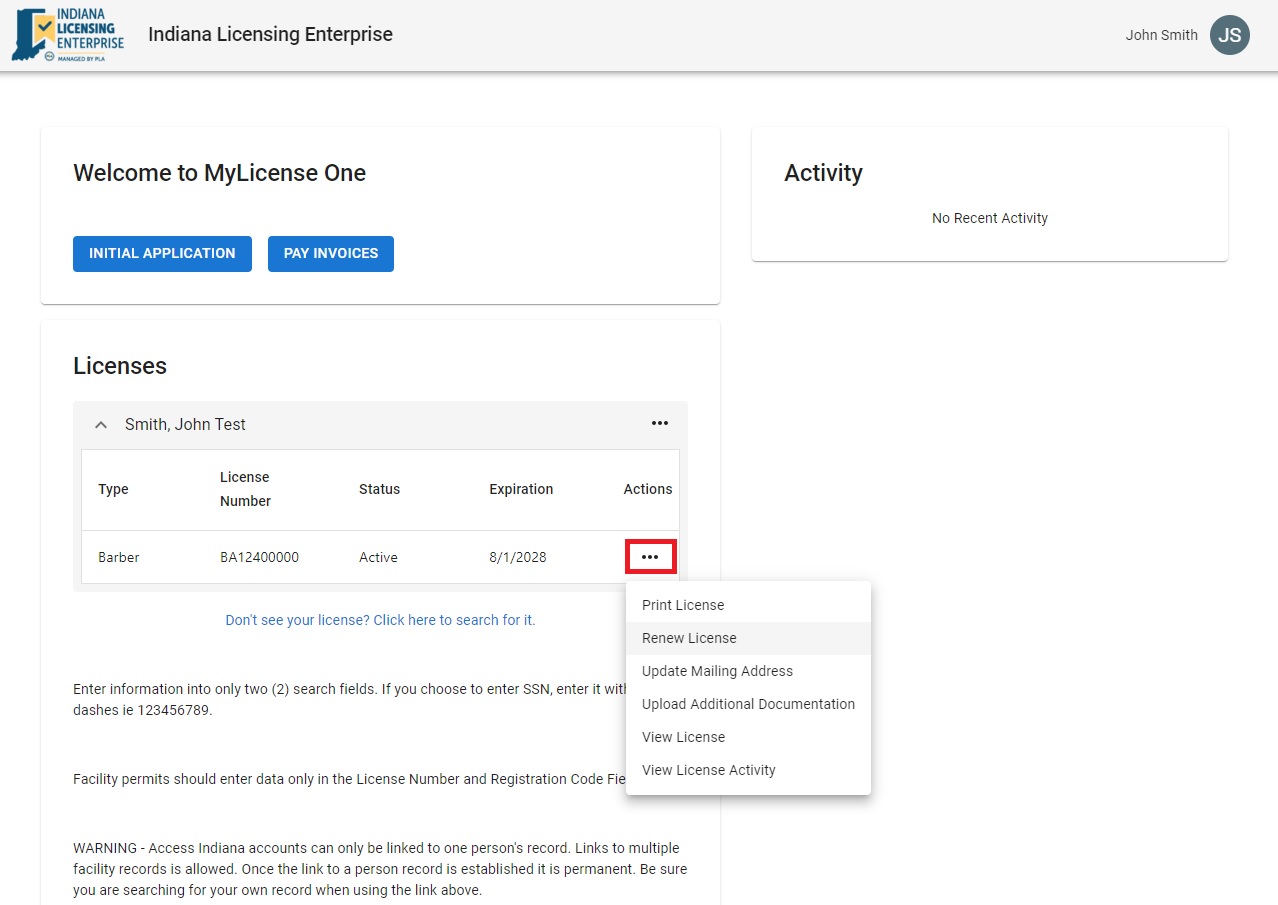
Step 1
- Select the 3 dots under Actions beside the license you wish to take an Action
How to View Activity
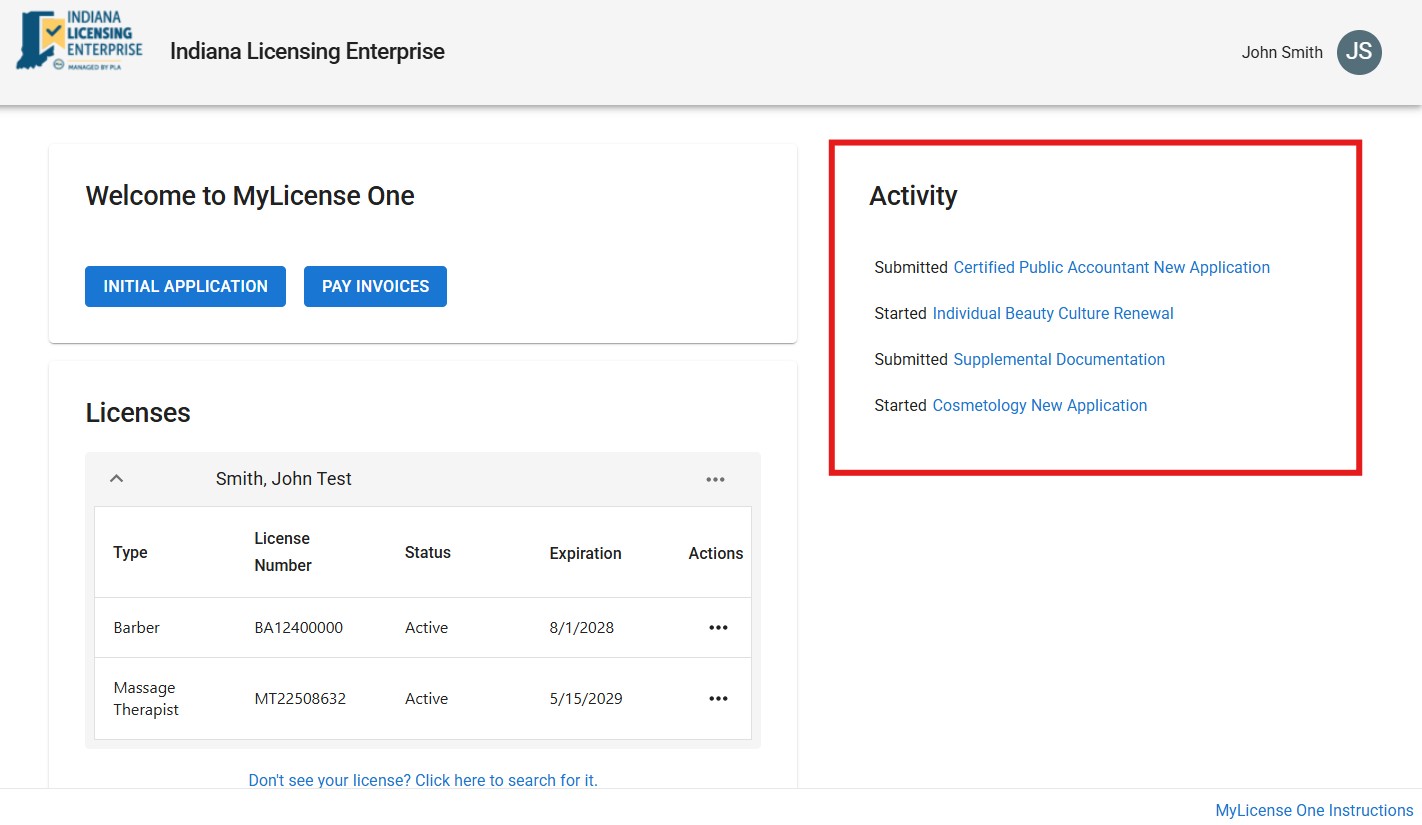
Your MyLicense One account stores Action Items that you have Started and/or Submitted within the MyLicense One account. Any Actions taken place prior to migration will not appear in your account, only those Actions that have occurred since the creation of the MyLicense One account. If you have created multiple accounts with different email addresses, please be aware that Activity of previously submitted Actions will only be viewable within the account the Action took place.
Activity Panel
Dependent upon your browser viewing and/or dimensions, you will see the Activity Panel with Started and/or Submitted Actions on the RIGHT side of the Dashboard.
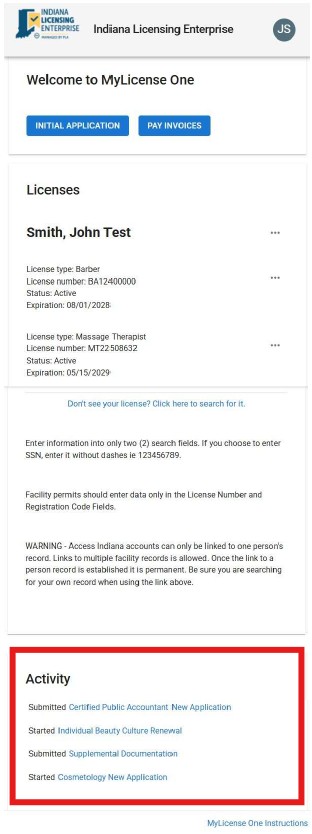
Activity Panel on Mobile Device
On most mobile devices, the Activity Panel may display UNDER the License Panel which will require you to scroll down to locate the Activity Panel to view Submitted and/or Started Actions.
How to Pay an Issuance Fee via Invoices
You have submitted an application that required approval prior to submitting an issuance fee, and have received your Issuance Approval noticed with your INVOICE number. To pay your Issuance fee online, you may use the below instructions.
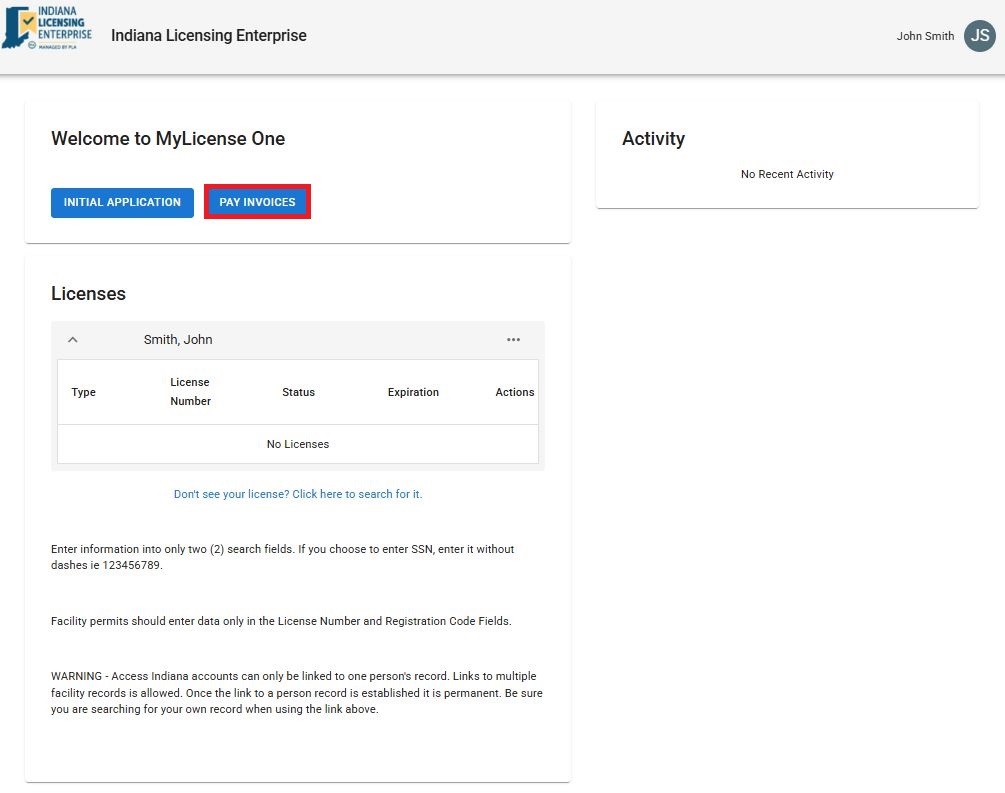
Step 1
- Login to your MyLicense One account
- Select the PAY INVOICES button
Step 2
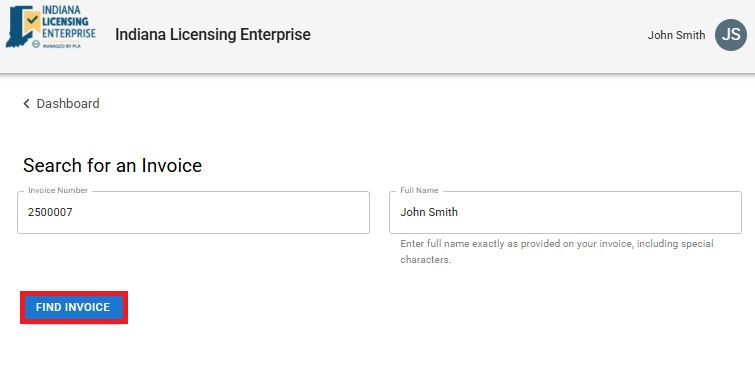
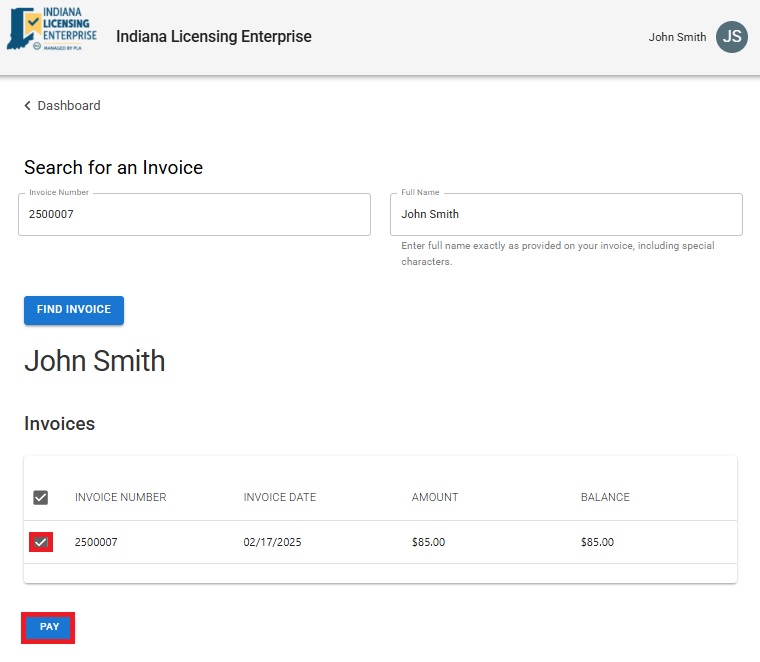
- Enter your Invoice Number and Full Name
- Select FIND INVOICE
Reminders:
You MUST have the Issuance Approval Notice to Complete these steps. You CANNOT submit payment online without having received the notice.
Both fields must match your Issuance Notice Exactly
Step 3
- Select the box by your Invoice and select the PAY button.
- You will be directed to the Payment Processor to submit your payment via credit or debit card.
Step 4
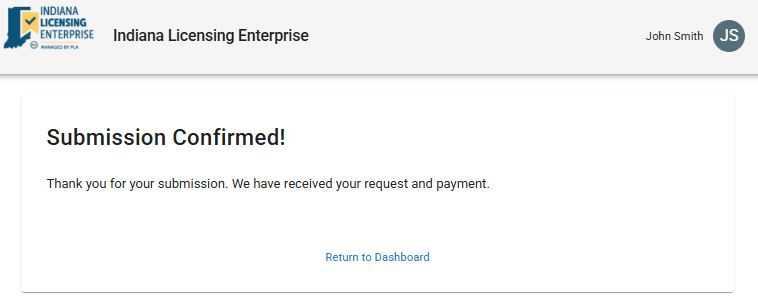
- After successful payment, you will receive a Submission Confirmation page.
Your License should be issued, barring any other review or probation orders, within 24 business hours.
Error Messages - Troubleshooting!
Review the error messages below for potential solutions. If an error instructs you to contact your Agency, please reach out to your specific partner agency(e.g., PLA, IDEM, IDOH, ATC).
For Professional Licensing Agency (PLA) Inquiries: please contact our Call Center at 317-232-2960 or the corresponding PLA Professions.
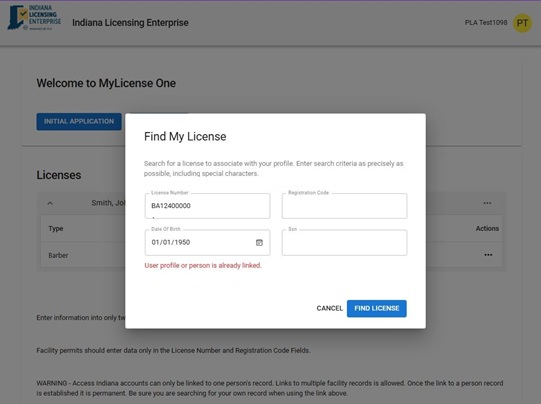
Linking Error #1
User profile or person is already linked.
If you receive an error while attempting to link your license record, you may have already linked it. Click Cancel to return to the Dashboard and check for existing linked record(s).
On your Dashboard, check for the following:
- Is a Name visible? If no, contact your Agency.
- Is it YOUR name? If you see someone else's name, log out immediately and ensure you are logging in using your own credentials
- Is your license listed?
- If Yes: Click the three dots (...) under the License Actions to see all available actions.
- If No: If your name is correct, but your license(s) is missing, contact your Agency.
Linking Error #2
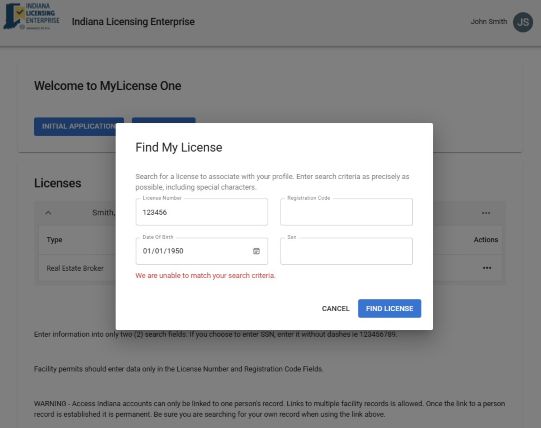
We are unable to match your search criteria.
Please verify your entries. To prevent errors, ensure the following:
- License Number: Confirm the accurate license number was entered with no missing or extra letter(s) or digit(s).
- Facilities should not use the SSN and DOB fields.
- Search Limit: Use Only Two (2) search fields at a time.
- Browser Autofill: Disable or clear browser’s autofill if it’s overwriting your manual entries.
- Formatting: Follow required formats (e.g., 9 digits SSN without dashes; DD/MM/YYYY for Dates)
Still having trouble? Contact your Agency for assistance.
Application Error #1
Application Failed to be completed. This may be due to a duplicate record in the system.
To resolve this error when attempting to Finish an application, you may have an existing record that must be linked first.
Steps to Resolve:
- Return to Dashboard
- Delete Saved Applications: Locate the Activity Panel, hover over and select the trash icon to Delete all “Started” activities.
- Link Record: Select “Don’t see your license? Click here to search for it” to link your existing record.
- Restart Application: Once linked, you may start a new application.
**Important: You cannot resume previously started applications. You must delete them (2nd step above) before linking your record.

Application Error #2
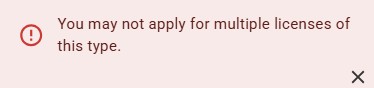
You may not apply for multiple licenses of this type.
If you already hold a license, you generally cannot apply for a duplicate of the same type. Some exceptions include:
- CSR-Practitioners may hold multiples license for different locations
- SLP-Support Personnel may submit multiple applications due to specific renewal restrictions.
Steps to Take:
- Check your Dashboard: If the license is already linked, do not start a new application. Instead, check for Renew, Reinstatement, Activation, etc. options under the license actions.
- Verify Rules: Review your Professions’ Statutes and Rules or, for PLA Professions, visit Contact PLA page to confirm your application method.
- No License? If you do not hold/held a license and cannot proceed, contact your Agency for guidance.
Summary Page Error #1
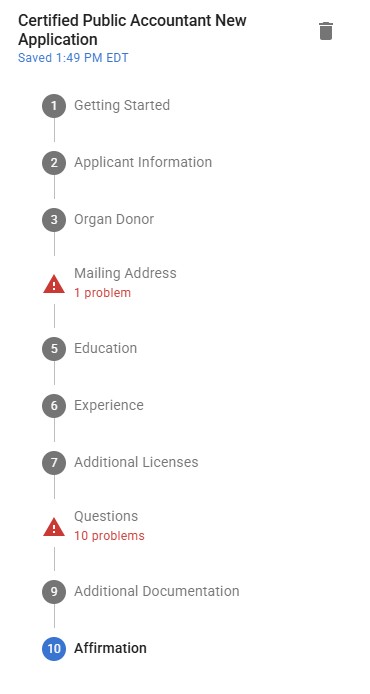
Cannot Proceed with Finish Button and Red Error Messages Appear
To proceed, ensure all application sections are fully completed by:
- Review the Menu: Check the navigation menu (use the burger icon on mobile) and review every section with a red dot or error message.
- Resolve Error(s): Locate and complete all fields or items labeled as “Required field”, follow the instructions within the red alerts to fix missing information.
- Verify List Items: If your application includes lists like Education, Verification, Bond, Employment, etc., select each individual entry to ensure that all mandatory details are correctly entered and formatted.
Example is an application with incomplete sections that need resolved before the applicant can proceed with the Button.
Network / System Status
 PLA Online Services is currently not aware of any issues. In order to begin, please select any service in the section above.