APRN: Submit a Request to Change your Collaborator(s)
APRNs may now login to their MyLicense One account and use the Change Collaborator/CPA Action Item.
Use the below guide to better assist you and your collaborators through this process after you have linked your license(s) to your account. For assistance with creating your MyLicense One account or linking your license, please use the MyLicense One Guide.
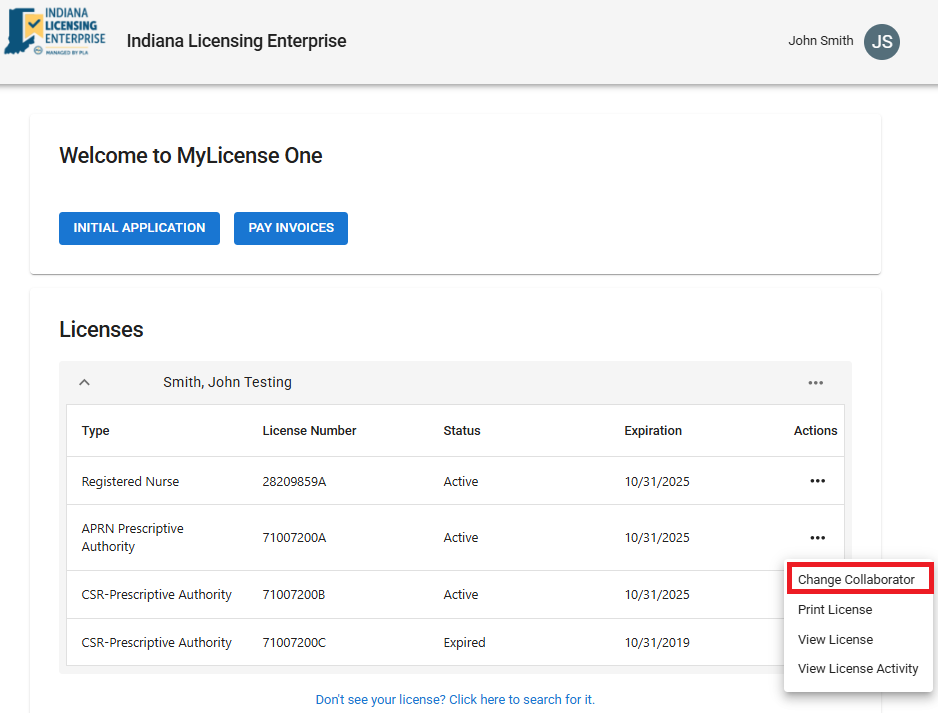
Step 1
- Select the three dots by your APRN license to view your list of Actions available
- Select the Change Collaborator/CPA Action
Step 2
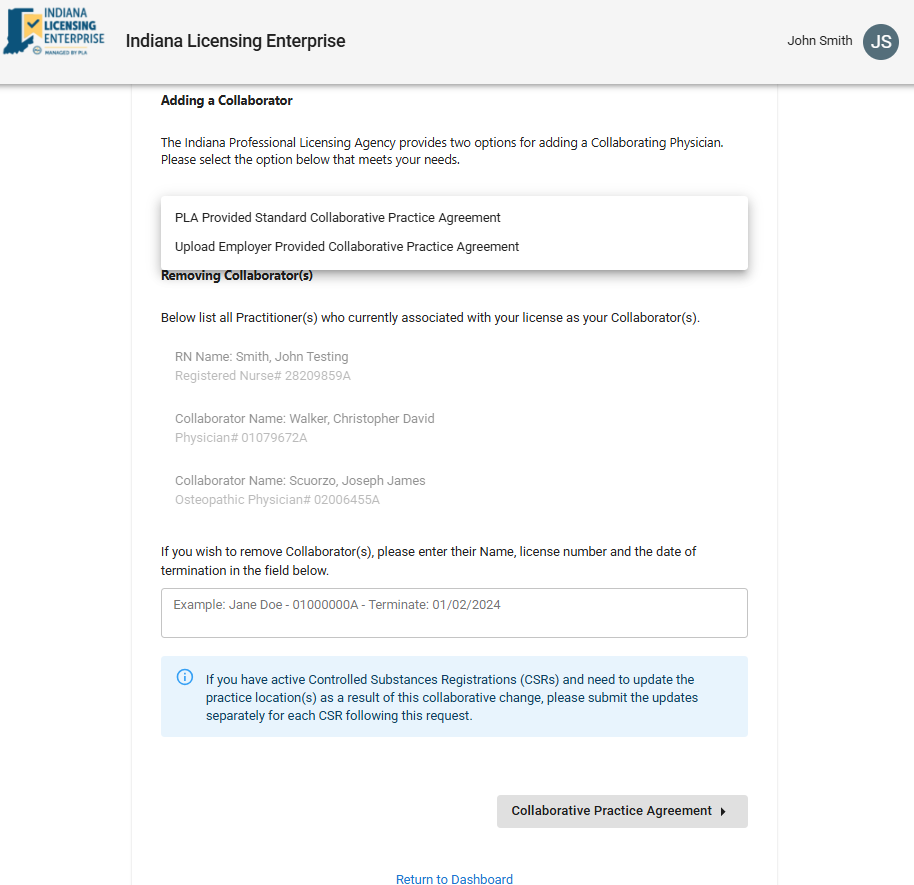
- Select from the 2 options that best meets your needs (defined below);
- Review your current list of Collaborator(s) if you have any currently assigned; and
- Enter Name, license number, and the date of termination for any collaborator(s) you wish to remove.
PLA Provided Standard Collaborative Practice Agreement: This option will allow you to complete the entire agreement via separate sections within this form, entirely electronically.
Upload Collaborative Practice Agreement: This option will allow you to complete some basic information online and then upload the collaborative agreement document (do not upload multiple documents separately.) This option will not require Step 3 with a Physician Affirmation.
**Special Note: If any Change of Collaborator(s) request results in a change to a CSR location, you must submit a separate request on the CSR via the Change CSR Location Action item.
Step 3
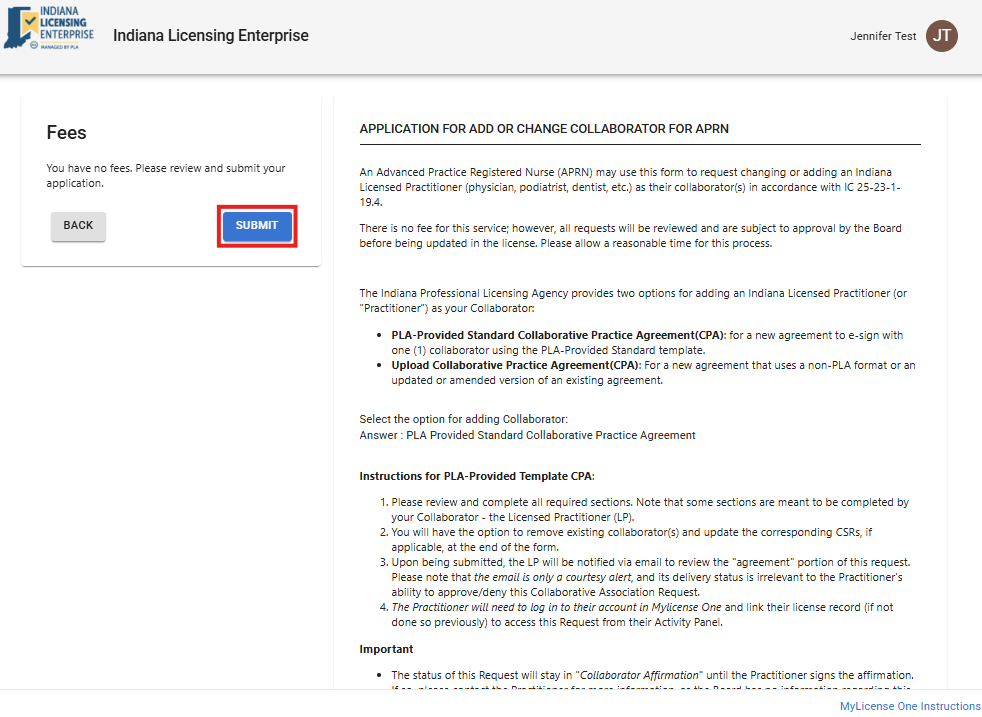
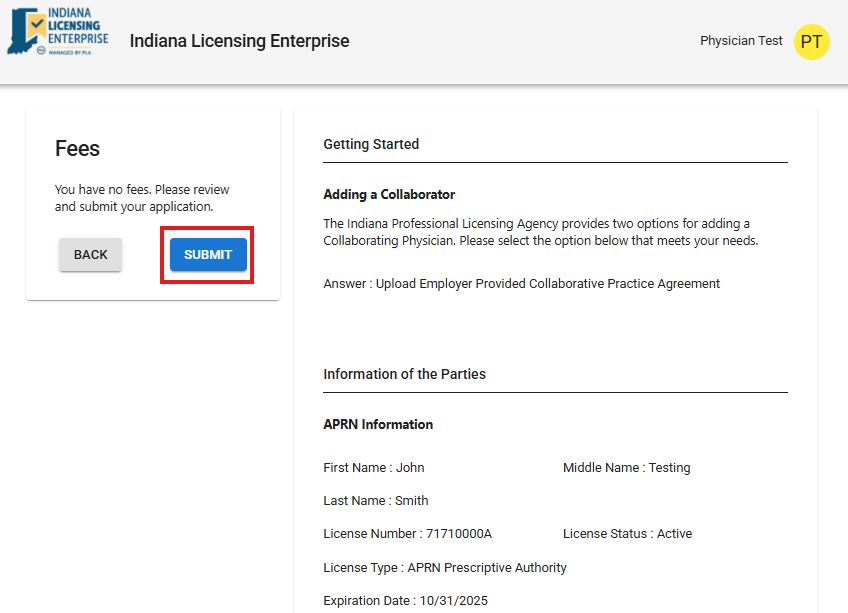
- You must select the SUBMIT button in order to send the request to to the requested collaborator(s).
**If the Collaborator Change Request is approved by the Practitioner, the APRN will receive an email indicating the Practitioner has affirmed to be their collaborator and the Board will process the request.
Review a Change Collaborator Request from an APRN
**This section is only for the PLA Provided Standard Collaborative Agreement option from the previous steps.
A Licensed Practitioner may now login to their MyLicense One account and to review any requested change of collaborator submitted by an APRN. The Licensed Practitioner will receive an email regarding the request that was submitted and then the request will appear in the Licensed Practitioner's Activity Panel in their MyLicense One account.
Use the below guide to better assist you through this process after you have linked your license to your account. For assistance with creating your MyLicense One account or linking your license, please use the MyLicense One Guide.
Step 1
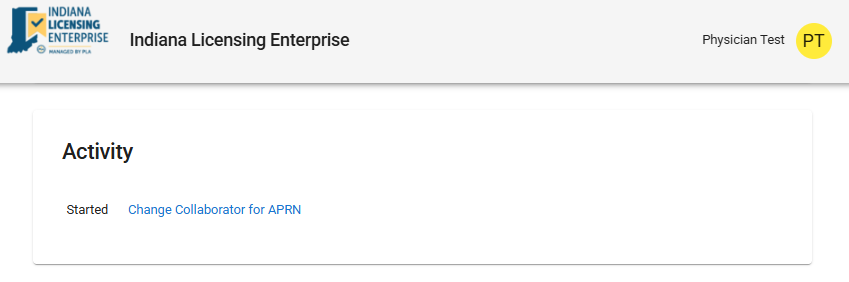
- Locate your Activity Panel in your MyLicense One account
- This may be located on the right OR you may need to scroll to the bottom
Step 2
- Select the buttons on the bottom of each section of the request to proceed through and review each page until you get to the Physician Affirmation.
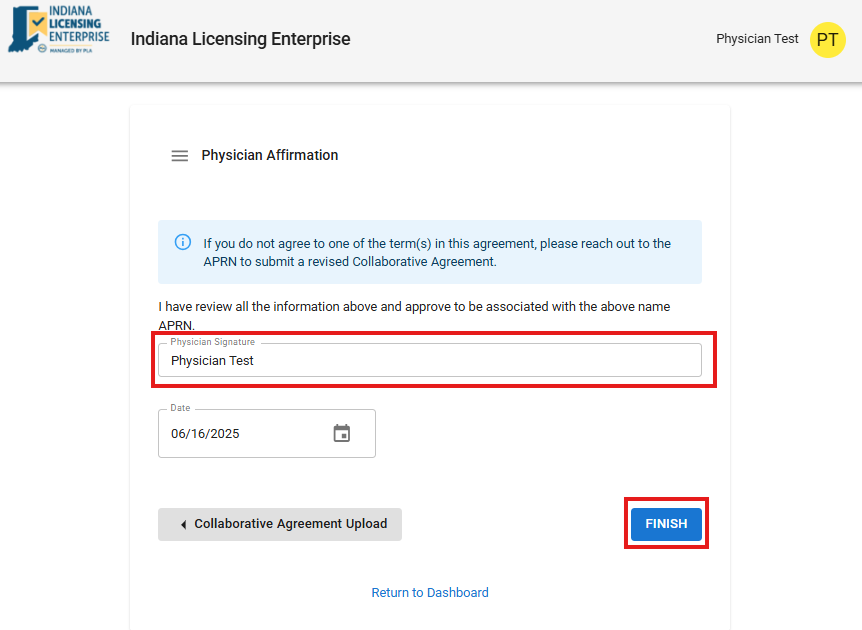
- Once on the Physician Affirmation page, if you approve the association, you will enter your electronic signature and select FINISH
**If after reviewing the request and you do not agree to one of the terms on the agreement, please work with the APRN to submit a revised Collaborative Agreement.
Step 3
- You must select the SUBMIT button in order to send the approved request to the Board for processing.
Physician Assistants: Submit a Request to Change your Collaborator(s)
Physician Assistants may now login to their MyLicense One account and use the Change Collaborator/CPA Action Item.
Use the below guide to better assist you through this process after you have linked your license(s) to your account. For assistance with creating your MyLicense One account or linking your license, please use the MyLicense One Guide.
Step 1
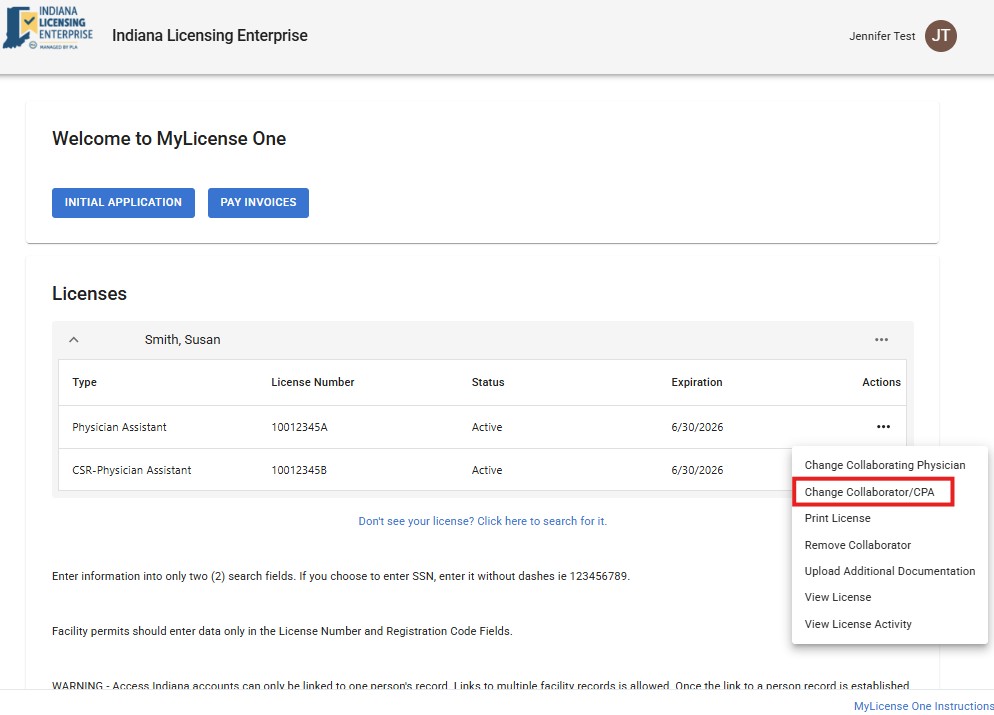
- Select the three dots by your Physician Assistant license to view your list of Actions available
- Select the Change Collaborator/CPA Action
Step 2
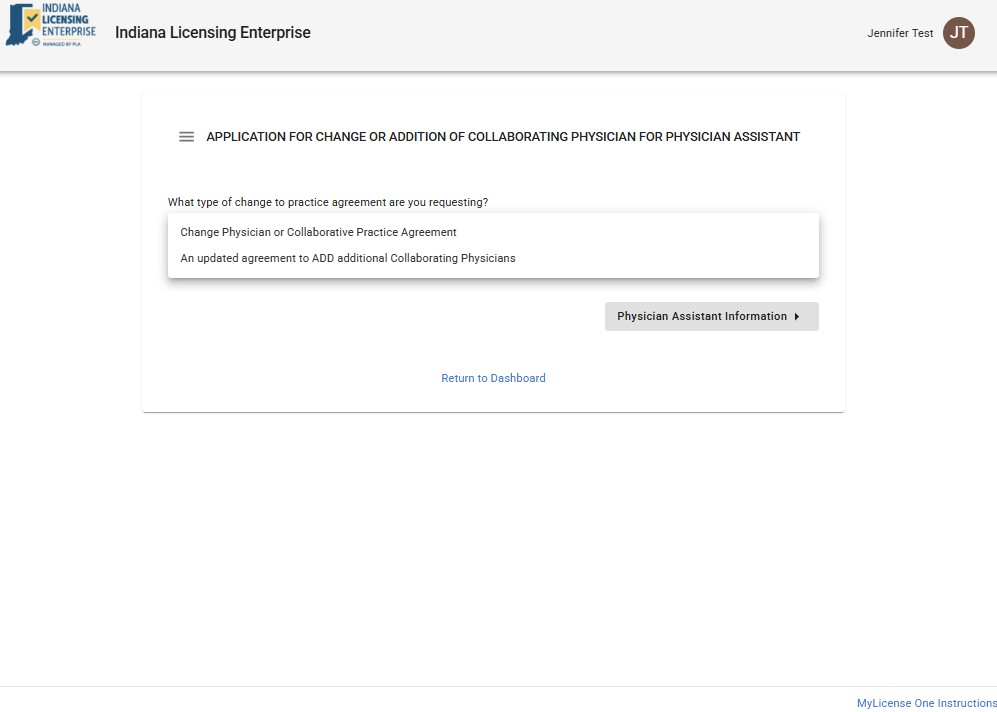
- Select from the 2 options that best meets your needs;
- Review your current list of Collaborator(s) if you have any currently assigned; and
- Enter Name, license number, and the date of termination for any collaborator(s) you wish to remove.
- The application fee is $50.00 per collaborating physician to be added to your license, plus additional processing fees. All fees and payments are non-refundable and non-transferable.
**Special Note: If the change of collaborator will result in a change to your CSR including Practice Location, DEA Information, or a request to Deactivate, you can now complete this request online at the same time. Follow the appropriate prompts.
 PLA Online Services is currently not aware of any issues. In order to begin, please select any service in the section above.