Employer Access System Indiana is the online portal for Employer Contacts, built on the Salesforce Experience Cloud. Employer Contacts can interact with Employer Advocates at the Indiana Public Retirement System (INPRS), upload documents, and more.
Table of Contents
Overview
Employer Access System Indiana (EASI) Portal is INPRS's secure online portal for Submission Unit
Contacts to interact with INPRS.
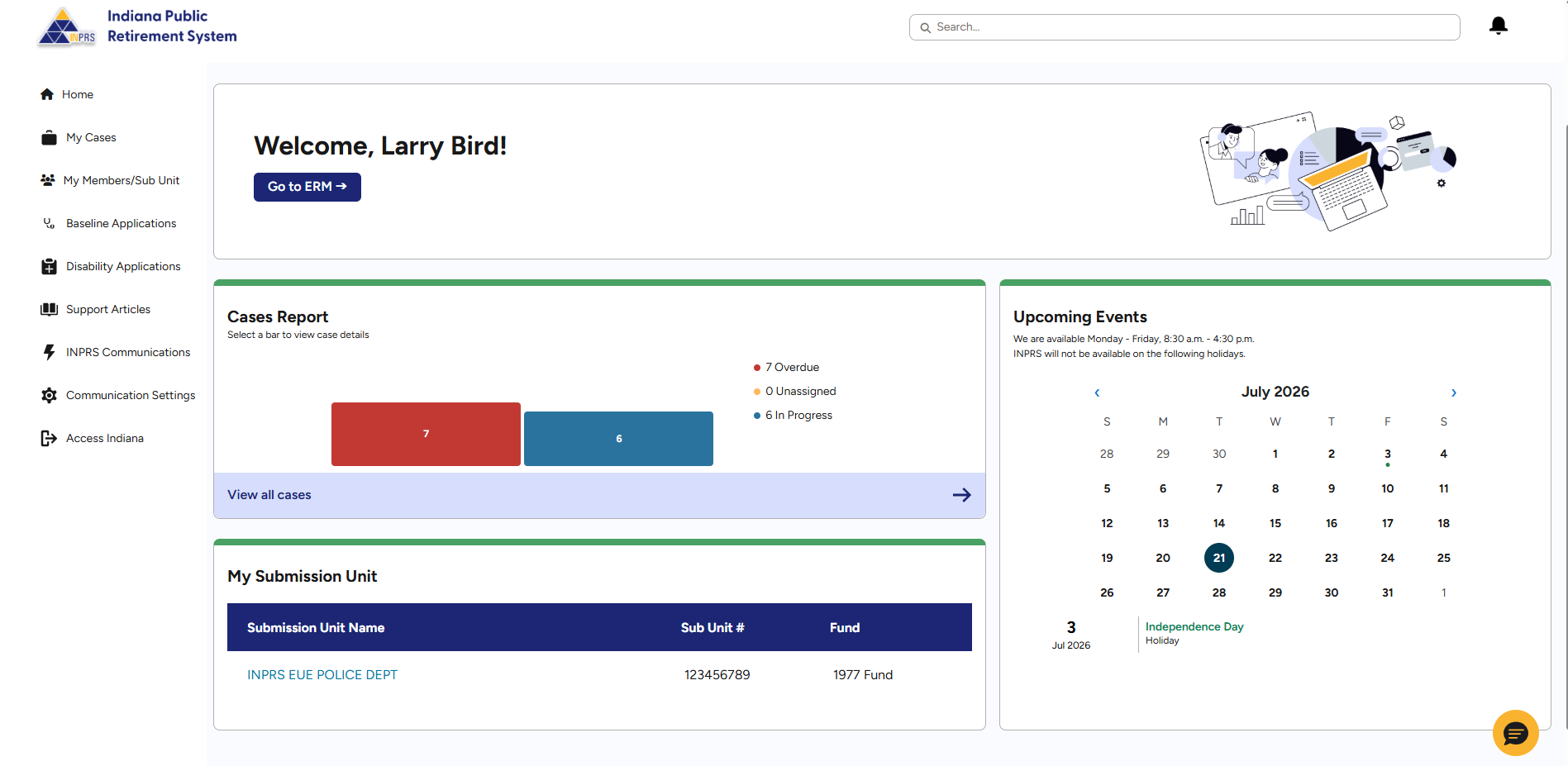
Think of it like a one-stop shop where you can:
Access ERM
Access member enrollment and review member information
Communicate with INPRS Employer Advocates
Track notifications about all activity
Resolve issues for your unit
View INPRS upcoming events and availability
Every inquiry, request, or required action you have with INPRS is tracked as a case.
If you have an Employer Reporting and Maintenance (ERM) role at your unit, you can also access ERM
directly from the portal.
Do you manage more than one Submission Unit? All units will be listed on the
bottom of the homepage and on the My Sub Unit page. Select the unit you want to view from either of those lists.
Requirements and responsibilities
These are the requirements to gain access to the EASI Portal, INPRS Learn, and Access Indiana.
Your ERM email address must have an active status, and it must match your Access
Indiana account.
If your active ERM email does not match your Access Indiana account email, you have three
options:
Change your Access Indiana account email to match your ERM email;
Create a new Access Indiana account using your active ERM email; or
Your authorized agent or ERM security administrator will need to deactivate your
contact record in ERM and create a new Employer Contact in ERM with your Access Indiana email.
A computer or mobile phone that has the ability to have an authentication app for Multi-factor
Authentication (MFA). This requirement adds an extra level of security for EASI and ERM.
Access Indiana has steps on their website for adding an Authenticator App to your Access
Indiana account (see steps on their website). Research MFA applications on the web, discuss the need for one
with your IT department, and decide which one to use.
How it's all connected
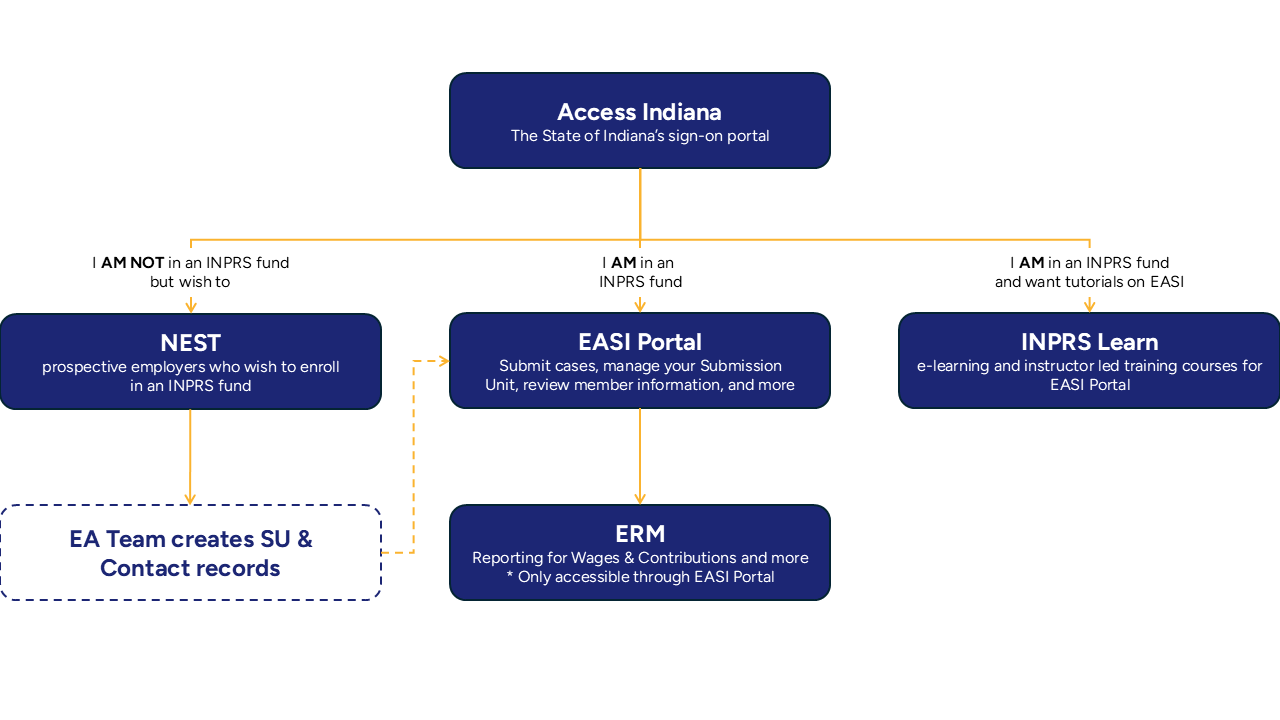
Access Indiana
The State of Indiana's sign-on portal that allows individuals to use one name and password to access
multiple state services. Employer Contacts access the INPRS Learn and the EASI portal through their Access Indiana
account.
Access Indiana accounts are managed by the State of Indiana. INPRS cannot reset Access Indiana
passwords, unlock Access Indiana accounts, or update Access Indiana multi-factor authentication (MFA) settings on
your behalf.
For help with an Access Indiana account, call 866-960-3023 during the hours of 8 a.m. through 9 p.m., Monday through Friday, and 9 a.m. to 1 p.m. on Saturday. Information can also be viewed on their FAQs and Help page.
Access Indiana Help
Forgotten password
Follow forgot password instructions on the Access Indiana login page.
Locked account
Use the Access Indiana self-service options to unlock your account, or contact Access Indiana support directly.
MFA code not received
Check that the phone number or email address registered for MFA in Access Indiana is current. If it's outdated, contact Access Indiana support.
Account not recognized
Confirm that you are using the correct email address. If you have never set up an Access Indiana account, you must create one before logging in. A new Employer Contact must confirm the user record has been set up in ERM. This will trigger a welcome email with instructions once your record is active.
Unable to complete MFA
If you no longer have access to the device or contact method registered for MFA, contact Access Indiana support.
If you are unsure whether your login issue is related to Access Indiana or to your EASI Portal access,
review the table below to help identify the likely cause.
Scenario
Likely Cause
After clicking the EASI Portal tile in Access Indiana, you cannot reach the EASI Portal login page (the
page does not load).
This may be a browser or network issue. Try clearing your browser cache, using a different browser, or
checking your internet connection before contacting support.
After clicking the EASI Portal tile, the page looks like it's loading without ever resolving.
Use the Access Indiana self-service options to unlock your account or contact Access Indiana support
directly.
You click the EASI Portal tile and are returned to Access Indiana, or you cannot log in to Access
Indiana at all.
The issue is likely with your EASI Portal access, or your Employer Contact record in ERM is not active.
Refer to the Losing Access to the EASI Portal Support Article or contact the INPRS Employer Advocate
Team.
EASI Portal
About EASI Portal
The EASI Portal makes it easy for you, the employer, and us, your team at INPRS, to create and track an
issue — or "case" — so that everyone can see every step taken.
EASI eliminates confusion, frustration, and duplicity by making every step of the journey to resolution
viewable to all parties.
Log into your Access Indiana account using your active ERM email address.
Select the EASI icon from your Access Indiana dashboard. (If you currently have an active
ERM email address, portal access is granted automatically once you log into Access Indiana.)
Hover over any EASI Portal element below to see it's purpose
EASI Portal Help
Lost EASI Portal Access? Your access to the EASI Portal depends on:
An active Employer Contact record at a participating Submission Unit, and
Activity in the EASI Portal in the last 60 days.
There are three reasons an Employer Contact may lose access to the EASI Portal:
You have not logged in for more than 60 days and your account has been frozen for inactivity.
All of your Employer Contact records in ERM are inactive.
All of your Submission Units have a status of:
Withdrawn
Withdrawn (Privatization)
Merged with Liability, or
Merged without Liability
When a Submission Unit's status changes to Withdrawn, Withdrawn (Privatization), Merged with Liability,
or Merged without Liability in ERM, the change automatically removes EASI access for everyone associated with the
unit.
If you believe your Submission Unit has been withdrawn in error, or if you have questions about whether
your access loss is related to a Submission Unit withdrawal, contact the INPRS Employer Advocate Team directly by
phone. If you represent more than one Submission Unit, your access will remain for the other Submission Units.
Employer Contacts who have not logged in to the EASI Portal for more than 60 days are
automatically frozen and temporarily lose access to all of their Submission Units. Your unit's Security
Administrator can unfreeze your account.
INPRS Learn
INPRS Learn, also known as the Learning Management System (LMS), is an educational platform for
employers that contains guides and courses to support your experience with the EASI Portal.
Log into your Access Indiana account using your active ERM email address.
Select the INPRS Learn icon from your Access Indiana dashboard.
INPRS Learn Help
If your active ERM email does not match your Access Indiana account email, you have three options:
Change your Access Indiana account email to match your ERM email;
Create a new Access Indiana account using your active ERM email; or
Your authorized agent or ERM security administrator will need to deactivate your contact record
in ERM and create a new Employer Contact in ERM with your Access Indiana email.
If your ERM email is inactive, your authorized agent or ERM security administrator will need to change
your ERM email status to active and update the effective date.
If your ERM email is active and it matches your Access Indiana account, contact an INPRS Employer
Advocate. Support is available from 8:30 a.m. to 4:30 p.m. Monday through Friday at (888) 876-2707.
I logged into Access Indiana and clicked on the INPRS Learn icon, but the home screen did not appear. Who do I contact? Contact the INPRS Employer Advocate Team. Support is available from 8:30 a.m. to 4:30 p.m. Monday through Friday at (888) 876-2707.
Virtual Instructor Lead Training (VILT) Schedule
Virtual Instructor Lead Training (VILT) begins Aug. 25, 2026, with sessions available up to Oct. 2, 2026. View the schedule below to see which
dates and times work best for you and your team. As a reminder, to access training materials in INPRS Learn, you must have an Access Indiana account. Don't
have an Access Indiana account? See how to create one.
It is strongly recommended that all employer contacts enroll in Modules 1 & 2 in order to fully understand the EASI Portal’s functionality and
capabilities. Additionally, if you are in the 1977 Fund, we encourage you to also enroll in Modules 3 & 4 which will walk you through submitting baseline and
disability applications through the Portal.
Each session will open 15 minutes prior to the start time. Please enroll in the session you wish to attend prior to the session start date and time,
as there are limited VILT sessions for each module. Once a VILT session begins, you may no longer enroll into that session. All sessions are scheduled for Eastern
Standard Time. You may only be enrolled in one session of each module at one time. To reschedule a VILT session, you must un-enroll from the currently selected VILT
session to re-open the other available sessions for enrollment. If no enrolled attendees have joined the session 15-minutes past the start time, then the session
will be cancelled by INPRS.
Recommended for ALL Contacts
EASI Portal Overview and Navigation
EASI Portal Case Management
Recommended for 1977 Fund Contacts
EASI Disability Application
EASI Baseline Application
Date
Time Slot 1
Time Slot 2
Tuesday, August 25, 2026
12:00–1:15
2:00–3:15
Friday, August 28, 2026
9:00–10:15
11:00–12:15
Tuesday, September 1, 2026
12:00–1:15
2:00–4:00
Friday, September 4, 2026
9:00–11:00
11:00–12:15
Tuesday, September 8, 2026
12:00–2:00
2:00–4:00
Friday, September 11, 2026
9:00–11:00
11:00–1:00
Tuesday, September 15, 2026
12:00–2:00
2:00–4:00
Friday, September 18, 2026
9:00–11:00
11:00–1:00
Tuesday, September 22, 2026
12:00–2:00
2:00–4:00
Friday, September 25, 2026
9:00–11:00
11:00–1:00
Tuesday, September 29, 2026
12:00–2:00
2:00–4:00
Friday, October 2, 2026
9:00–11:00
11:00–1:00
Join a Sub Unit through NEST
The New Enrollment Submission Tracker (NEST) is the dedicated online tool for prospective employers who
wish to enroll in an INPRS fund. The process begins when you fill out the "Request to Join Fund" form. After your
initial eligibility is reviewed, you will be granted access to the NEST portal to complete the next steps.
Log into your Access Indiana account using your active ERM email address.
Search for and select the New Enrollment Submission Tracker (NEST) tile.
How to Request to Join a Fund
Follow these steps to begin your enrollment process.
Complete all the required fields on the form, including your contact information, employer name, and the fund you wish to join.
Step 3
After submitting the form, you will receive an email confirming that your request has been received. This email will also include instructions on the next steps.
Step 4
The INPRS Employer Advocate (EA) team will review your submission to determine initial eligibility.
Step 5
Once confirmed, you will receive a welcome email with instructions on how to access the NEST portal to complete your enrollment.
Further questions? Contact the INPRS Employer Advocate Team. Support is available from 8:30 a.m. to 4:30 p.m. Monday through Friday at (888) 876-2707.