Creating Nested Accordions
In our templates, we utilize a layout library called Foundation. For the nested accordions, we can use the HTML inside the content of an Accordion Content Template. Please see the following link for additional information about Foundation Accordions: https://get.foundation/sites/docs/accordion.html#basics
- Open the Source View for the desired accordion content, then manage your text content for each nested accordion item from within the Source View editor.
- After saving your changes, you can test the nested accordion by refreshing your page preview in CMS, for example: https://cms.in.gov/dwd/indiana-unemployment/example-content/
- Accordion A
Panel A. Coming soon!
- Accordion B
Panel B. Coming soon!
- Accordion C
Panel C. Coming soon!
Coming soon!
Coming soon!
Creating Jump Links
Heading 2a (jump link 1)
- To create an anchored section, highlight the desired text (like a heading), the click the Anchor icon and provide a unique name that will be used for the jump link.
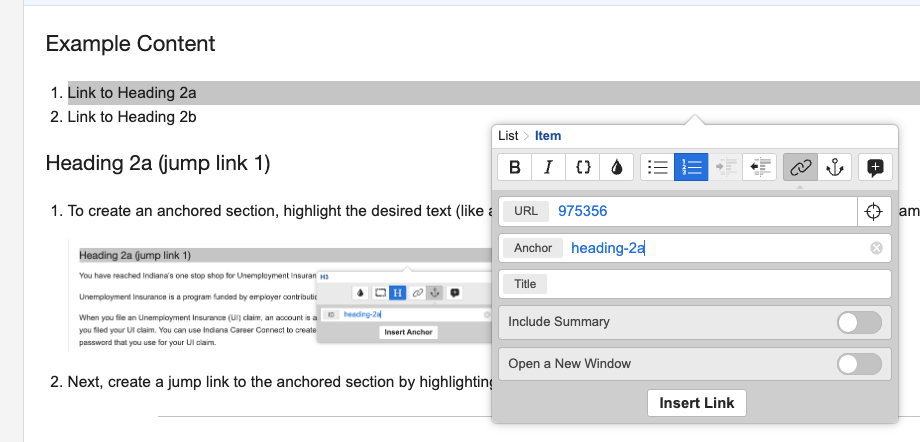
- Next, create a jump link to the anchored section by highlighting the desired text, choosing the same (or another) page as the URL, then type the anchored section's unique ID in the Anchor field. Finally, click the Insert Link button.

Heading 2b (jump link 2)
Example content here.