How-To Create Jump Links
There are two main parts to a jump link: an anchor and a link. The anchor is placed within the content you wish to link to, and the link is placed on an item within the Table of Contents, for example; or somewhere else within text content you're linking from.
Creating Anchor Names
- Using "Section 1" below as an example, highlight the Section 1 headline text and you'll see that it has an anchor name assigned to it.
- You can highlight any text within your content and type in a unique anchor name in order to create one.
- Anchors are typically created on a headline (H2, H3, etc.) because they are at the top of the content being linked to.
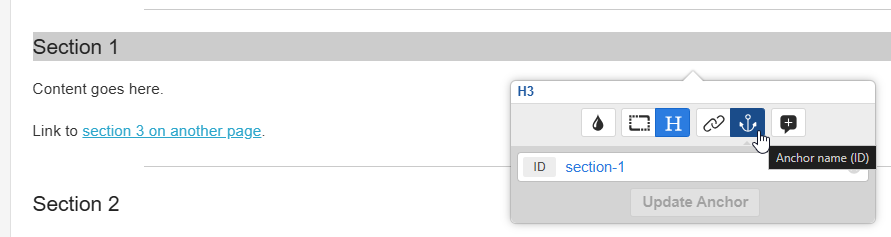
- Click the Update Anchor button after inputting your anchor name.
Creating Same-Page Anchor Links
- Now that you have an anchor created, you can create a link to it. Using "Section 1" as an example, click on Section 1 in the Table of Contents and you'll see that it has a URL assignment of "#section-1".
- The anchor name must be prefixed with a # to signify that it's a in-page anchor, then type the anchor name of the content section you're linking to directly after that, no spaces.
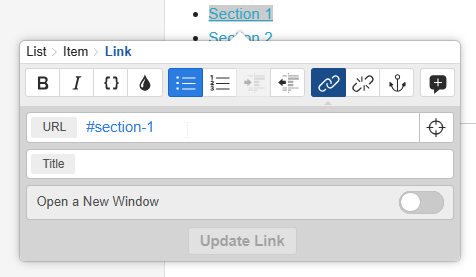
- Click the Update Link button to commit the change.
- The anchor name must be prefixed with a # to signify that it's a in-page anchor, then type the anchor name of the content section you're linking to directly after that, no spaces.
Creating Extra-Page Anchor Links
- Using this test subpage as an example (Test Subpage), there's an anchor created on Section 3's H2. Then, there's a link from the Table of Contents below, to that page and anchor.
- Select the page the anchor lives on for the URL field, then type the anchor name in the Anchor field. Note, you do not need a # prefix here.
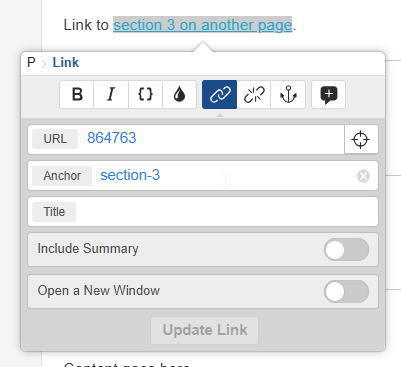
- Click the Update Link button to commit the change.
- Select the page the anchor lives on for the URL field, then type the anchor name in the Anchor field. Note, you do not need a # prefix here.
Example
Table of Contents
Section 1
Content goes here.
Link to section 3 on another page.
Section 2
Content goes here.
Section 3
Content goes here.
Section 4
Content goes here.