
Open the Template and Save Your QAPP
When you open the QAPP template it will either open as a read-only document or you may be prompted by the following message to save the document under a new name:
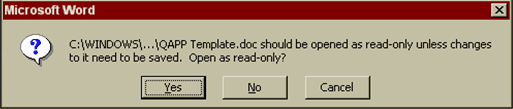
If you see this prompt, click “No”. When the document opens, use the File + Save As command to save it under a new name. If the document opens as a read-only document, you must save the document under a new name to preserve any changes you make to it. The new document you save will be the one you use to draft your QAPP.
How the Template Works
Form Fields
All form fields (the sections in gray) are editable. The only exception to this is the Table of Contents, which does not function the same way as a form field.
Click in any form field to enter or edit text.
- Pressing the Enter key with the cursor inside a form field or at the end of the form field will begin a new paragraph.
- Form fields are unlimited in the amount of text that can be entered and will accept text cut/copied and pasted from other documents.
- The Tab key can be used to move automatically from one field to the next.
Help Text
Help text is provided in each form field and is designed to assist you in providing the correct information for each section. The help text will automatically be overwritten when you tab into a form field and begin entering text. However, if you simply click in the form field, the help text remains and must be deleted manually.
- If you do not want to overwrite the help text, press the Enter key and begin entering information below the form field. When you no longer need the help text, highlight and delete it.
The Table of Contents
Unlike the other form fields in the template, the Table of Contents is not editable. However, the numbering can be updated by pressing the F9 key on your keyboard. Although this feature is automated, it will not work unless you press the F9 key. The Table of Contents should be always be updated prior to submitting any draft of the QAPP to IDEM.
The List of Appendices and List of Tables
Both of these lists are editable and function the same way as other form fields. This allows you to delete or add as many appendices and tables as needed. Likewise, the title pages for the Appendices that appear at the end of the template are editable, allowing you to delete them or create additional title pages using the Copy + Paste commands.
Note: If you delete both the List of Appendices and the List of Tables entirely, page two of your QAPP will remain blank. This is necessary to maintain the correct pagination within the document.
- Type the following into the form field that appears below the lists on page two: "This page intentionally left blank."
Tables
All tables in the template are editable. To adjust column width and/or row height:
- Click on a border and drag it to create the desired size.
To add columns:
- Highlight the entire column to the right of where you want the new column to appear.
- On the menu bar at the top of your screen, click on Table + Insert Column.
To add rows:
- Click in any cell in the row directly above where you want the new row to appear.
- On the menu bar at the top of your screen, click on Table + Insert Row. The new row will appear directly below.
To delete rows and/or columns:
- Highlight the rows/columns you want to delete.
- On the menu bar at the top of your screen, click on Table + Delete Cells and check the appropriate radio button:
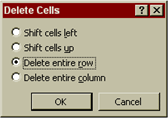
Note: Tables in the template may be replaced with tables created in other applications using Cut or Copy + Paste commands.
To delete a table:
- Highlight the entire table and press the Enter key.
Note: If you delete a table, your QAPP will retain a blank page where the table once appeared. This is necessary to maintain the correct pagination within the document.
- Type the following into the form field below the table: "This page intentionally left blank." Then highlight and delete the table.
Before You Submit Your QAPP
- Spell-check and/or proofread your document (very important!).
- Check to see that the appropriate draft number and date appears on the Title Page.
- Delete any remaining help text.
- Update the Table of Contents by pressing the F9 key.