Help Topics:
Browsing Collections
Using Advanced Search
Browsing Collections
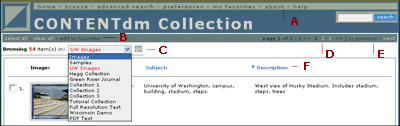
Use the browse option for viewing items in a collection without specifying search criteria. Change the way you view collections while browsing by selecting Preferences.
If column headings are hyperlinked, they can be used to sort results. An arrow indicates the direction of the sort for that field.
To view a different collection, select a collection from the drop-down list and click Go.
Each letter below corresponds to a definition of that element.
A. Global Navigation
Global navigation for searching, browsing, and working with items in collections.
B. Select All, Clear All, Add to Favorites
Use these links to add items to My Favorites. Select All activates all the check boxes on the current page. Clear All
removes all checks from the check boxes. To add items to CONTENTdm My
Favorites, check the boxes next to the items you want (or click Select All to check all items on the page) and then click Add to Favorites. See My Favorites for more information.
C. Collection List
Select a collection to browse and click Go.
D. Page Navigation
If the collection contains
more items than can be displayed on a single page, click the
hyperlinked page numbers to view other pages.
E. Previous and Next Page
If the collection contains more items than can be displayed on a single page, click Next or Previous to view other pages.
F. Column Headings
Click a hyperlinked title heading to sort. An arrow indicates sort order.
| <<< back | ^ to top ^ |
Using Advanced Search
You have several options for searching within a single collection or across multiple collections. You can search for items within the search box on the heading, or click advanced search to use other types of searches.
The search box (part of the navigation heading) searches across all fields in all collections for any term that you put in the search box in any order. For instance, if you search for "westward migration", the search engine searches for items containing "westward", or "migration".
The advanced search page allows you to select which collections to search. This page has four search types:
The search options presented differ based on your initial choice to search across all fields, by selected fields, by proximity or by date. The default selection is to search across all fields.
Search Across All Fields
When you select Search Across All Fields, a screen similar to the one below appears. Each letter below corresponds to a definition of that element.
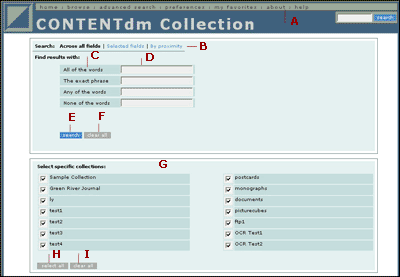
A. Global Navigation
Global navigation for searching, browsing, and working with items in collections.
B. Search Mode
Click an option to specify your search preference. Search across all
fields, selected fields, by proximity, or, if available, by date within
collections. Whether you have access to the date range search depends
on the content of the collection, so this option may not be available.
The default mode searches across all fields.
C. Search Operators
Choose to search for all of the words, the exact phrase, any of the words, none of the words, or a combination.
D. Search Text Boxes
Type your search terms in the appropriate text boxes.
E. Search
Click Search when you have finished specifying your search criteria.
F. Clear All
Click Clear all to reset all the search fields.
G. Available and Selected Collections
Depending on the number of available collections, you'll see either a check box or list box option for selecting collections.
H. Select All
Select all collections to search across.
I. Clear All
Clear all collections. In order to perform a search, you must have one collection selected.
Search Selected Fields
When you select Search Selected Fields, a screen similar to the one below appears. Each letter below corresponds to a definition of that element.
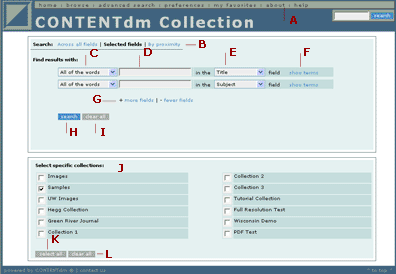
A. Global Navigation
Global navigation for searching, browsing, and working with items in collections.
B. Search Mode
Click an option to specify your search preference. Search across all
fields, selected fields, by proximity, or, if available, by date within
collections. Whether you have access to the date range search depends
on the content of the collection, so this option may not be available.
The default mode searches across all fields.
C. Search Operators
Use the drop-down list to choose from the types of queries available.
You may choose to search for all of the words, the exact phrase, any of
the words, none of the words, or a combination.
D. Search Text Boxes
Type your search terms in the appropriate text boxes.
E. Field Names
Use the drop-down list to specify which field you want to search.
F. Show Terms Link
The Show Terms text link is available only when searching a single collection. Click Show Terms
to open a list of indexed words that appear in the field you selected
from the Field Names drop-down list. Click a word in the index list to
automatically place the word in the search text box. Click Search.
G. + More Fields| - Fewer Fields
Add more search fields by clicking More Fields. Reduce the number of search fields by clicking Fewer Fields. You can have as many as four fields and as few as one field.
H. Search
Click Search when you have finished specifying your search criteria.
I. Clear All
Click Clear all to reset all the search fields.
J. Available and Selected Collections
Depending on the number of available collections, you'll see either a check box or list box option for selecting collections.
K. Select All
Select all collections to search across.
L. Clear All
Clear all collections. In order to perform a search, you must have one collection selected.
Search by Proximity
When you select Search by Proximity, a screen similar to the one below appears. Each letter below corresponds to a definition of that element.
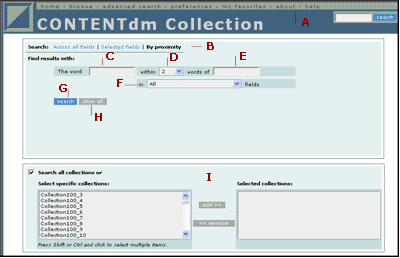
A. Global Navigation
Global navigation for searching, browsing, and working with items in collections.
B. Search Mode
Click an option to specify your search preference. Search across all
fields, selected fields, by proximity, or, if available, by date within
collections. Whether you have access to the date range search depends
on the content of the collection, so this option may not be available.
The default mode searches across all fields.
C. First Search Text Box
Type your search term in the text box.
D. Proximity Choices
Use the drop-down list to
choose the number of words the search term in the first search text box
can be from the search term in the second search text box.
E. Second Search Text Box
Type your search term in the text box.
F. Field Names
Use the drop-down list to specify which field you want to search.
G. Search
Click Search when you have finished specifying your search criteria.
H. Clear All
Click Clear all to reset all the search fields.
I. Available and Selected Collections
Depending on the number of available collections, you'll see either a check box or list box option for selecting collections.
Search by Date
Whether you have access to the date search depends on the content of the collection, so this option may not be available. Only the collections that are searchable by date can be selected and searched in this mode. When you select Search by Date, a screen similar to the one below appears. Each letter below corresponds to a definition of that element.
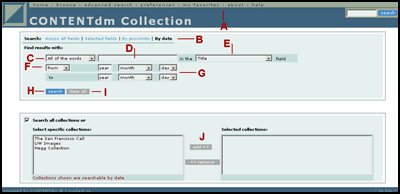
A. Global Navigation
Global navigation for searching, browsing, and working with items in collections.
B. Search Mode
Click an option to specify your
search preference. Search across all fields, selected fields, by
proximity, or, if available, by date within collections. Whether you
have access to the date range search depends on the content of the
collection, so this option may not be available. The default mode
searches across all fields.
C. Text Choices
Use the drop-down list to refine your search by selecting phrasing options so that your results match.
D. Search Text Box
Type your search terms in the text box.
E. Field Names
Use the drop-down list to specify which field you want to search.
F. Selecting a Search-Range
Use the drop-down list to specify a date range, or to search after, before, or on a particular date.
G. Specify a Date-Range
Use the drop-down lists
and the text box to specify the range of dates you want to use in your
search. Entering a year is required to perform a search. The required
format for year is yyyy. Although not required, selecting more options
will narrow your search.
H. Search
Click Search when you have finished specifying your search criteria.
I. Clear All
Click Clear All to reset all the search fields.
J. Available and Selected Collections
Only the collections that are searchable by date are available in the
by date search mode. Depending on the number of available collections,
you'll see either a check box or list box option for selecting
collections.
| <<< back | ^ to top ^ |