Signing in to MyCase
Attorneys with an active license may sign into the mycase.in.gov website for enhanced access to public documents. You will sign into mycase.in.gov with the same username and password that you use to sign into the Indiana Courts Portal. You may sign in with your attorney number and PIN instead. Make sure you include the hyphen in your attorney number (e.g., 12345-67). If you do not remember your credentials, go to portal.courts.in.gov to recover them.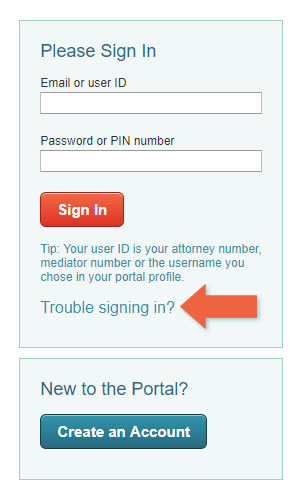
Signing in to the Portal
Sign into the portal with any combination of:
- Email or user ID - This can be your email address; the username you chose when you created your account; or a number the Supreme Court assigned to you, such as an attorney number, mediator number, portal access number, or judicial branch ID number. If you sign in with a number, make sure to include the hyphen (e.g., 12345-67) if there is one.
- Password or PIN - This can be the password you chose or the PIN assigned to you by the Supreme Court
If you aren't able to remember your password, click the "Trouble signing in?" link to do one of the following:
- Reset my password - Type the email address you use to sign into the portal, and you'll receive a temporary password in that inbox within a few minutes
- Send my PIN - Provide your ID number and follow the prompts to have your PIN mailed or emailed to you. If you choose email, it may take up to 30 minutes for the email to arrive.
- Answer security questions - Type the email address you use to sign into the portal, and you'll be presented with the security questions you chose when you created your account (or when you last updated them)
Creating an account
To create an account, go to http://portal.courts.in.gov/ and click the "Create an Account" button. Follow the prompts on the screen to choose a password and security questions. You will receive a confirmation email when your account has been successfully created.
To register for the clerk's portal, you must:
- have a Portal Access Number, which may be an Indiana bar number, mediator number, non-attorney judge number, or a judicial branch ID number OR
- be invited to register as an account administrator by an attorney, mediator or judge with an existing account
Information you'll need on hand
If you are an attorney, mediator, judge, or anyone assigned a judicial branch ID number, you will need:
- your Indiana bar number, mediator number, non-attorney judge number, or judicial branch ID number
- the PIN number assigned to you by the Supreme Court, AND
- a valid email address not shared with another user of the portal
If you are an invited account administrator, you will need:
- the email address where the invitation was sent, which must not be shared with another user of the portal.
Number Format
When creating your account, or when using the "Forgot Username" or "Forgot Password" links on the sign-in screen, you may be prompted to enter your attorney number, your non-attorney judge number, your mediator number, portal access number, or your judicial branch ID number.
Attorney numbers include a sequence number (usually one to six digits), a hyphen, and the two-digit county number. When entering your attorney number, you must include the hyphen, otherwise the portal will not recognize the number. Examples of correctly formatted attorney numbers include:
- 12345-67
- 1234-56
- 123-45
Non-attorney judge numbers and temporary attorney numbers are formatted in the same way as attorney numbers, but also include an NA or TA at the end. Include the hyphen and the NA or TA suffix when entering your non-attorney judge number.
Mediator numbers do not include hyphens and should be entered without them.
Still need help?
- Read our frequently asked questions
- Email customer service
- Call the IN.gov customer service center at 317-233-2010